


Hosting a .NET 10 API on Kubernetes with k3d: MetalLB for On-Prem, and Ingress vs Gateway API

Mehdi Hadeli
@mehdihadeli
On this page
Table of contents
Running a .NET 10 API in Kubernetes is a story with two chapters. The first chapter is local development: how do you get a cluster on your laptop without waiting for a cloud provider, and how do you keep the loop fast? The second chapter is production readiness: once the cluster is no longer a laptop, how do you expose services, and which traffic-routing API do you standardize on?
This article walks through a real sample, a small .NET 10 Todo API with PostgreSQL, and uses it to answer both questions. We use k3d, the lightweight Kubernetes distribution from the Rancher ecosystem, for local development. We add MetalLB when the cluster moves to on-premises hardware, because bare-metal Kubernetes has no cloud API to hand out load balancer IPs. And we compare the two traffic-routing APIs, Ingress and the Kubernetes Gateway API, using both inside k3d so you can see the difference with your own eyes before you commit to one.
Introduction
Kubernetes gives you a lot of machinery, and most of it is invisible when everything works. A Deployment keeps your pods running, a Service gives them a stable network identity, and an Ingress object (or a Gateway) decides which HTTP traffic goes where. The friction shows up in two places:
- Getting a cluster. A managed cluster on AWS, Azure, or GCP takes minutes to provision and costs money while it idles. For a local feedback loop you want something that boots in seconds and lives inside Docker. That is exactly what k3d does.
- Getting traffic in. On a managed cloud,
type: LoadBalancerworks out of the box because the cloud control plane provisions a real load balancer. On bare metal there is no such API, so the Service stays stuck at<pending>forever. MetalLB fills that gap by implementing the LoadBalancer contract inside the cluster.
The goal here is to end with a working setup you can reproduce end to end: a .NET 10 API running on k3d, a clear path to the same manifests on on-premises hardware with MetalLB, and a grounded opinion on Ingress versus the Kubernetes Gateway API, backed by working YAML for both.
The full sample lives in the dotnet-k8s-setup repository, and the step-by-step README is here. Every snippet in this article comes from that repository.
Objectives
- Run a .NET 10 Minimal API (Todo CRUD + PostgreSQL) in a local Kubernetes cluster.
- Use k3d, the Rancher-backed lightweight K8s distribution, as the primary local cluster.
- Understand the k3d traffic path: host port, built-in load balancer, ingress controller, ClusterIP service, pods.
- Add MetalLB to a cluster so
type: LoadBalancerworks on bare-metal and on-premises hardware. - Compare Ingress and the Kubernetes Gateway API at the API level, apply both in k3d, and know when to use each.
- Explore running cluster components with k9s and Headlamp instead of plain
kubectl.
Architecture Overview
The end-to-end traffic flow for the local k3d setup looks like this. Every hop matters, because it explains why port 80 on your machine ends up at a pod listening on 8080:
%%{init: {
  'theme': 'base',
  'themeVariables': {
    'background': '#ffffff',
    'primaryColor': '#ffffff',
    'primaryTextColor': '#2c3e50',
    'primaryBorderColor': '#bdc3c7',
    'lineColor': '#34495e',
    'secondaryColor': '#f8f9fa',
    'tertiaryColor': '#f1f3f5',
    'fontFamily': 'Segoe UI, Arial, sans-serif',
    'fontSize': '14px',
    'edgeLabelBackground': '#ffffff',
    'nodeBorder': '2px',
    'mainBkg': '#ffffff',
    'nodePadding': '12px',
    'subGraphBkg': '#fafbfc',
    'subGraphBorder': '#dfe6e9'
  }
}}%%
flowchart LR
    classDef external fill:#f5f5f5,stroke:#616161,color:#424242
    classDef gateway fill:#e8eaf6,stroke:#3949ab,color:#1a237e
    classDef compute fill:#e3f2fd,stroke:#1565c0,color:#0d47a1
    classDef db fill:#e3f2fd,stroke:#1976d2,color:#0d47a1

    subgraph Host["Host Machine"]
        Browser["Browser / HTTP client"]
    end

    subgraph K3dCluster["k3d Cluster (k3s in Docker)"]
        direction TB
        ServerLB["k3d-dev-serverlb<br/>nginx + confd proxy"]
        IngressCtrl["ingress-nginx-controller<br/>hostNetwork: true"]
        TodoSvc["todo-app-service<br/>ClusterIP :80"]
        Pods["todo-app pods ×3<br/>ASP.NET Core :8080"]
        PG[("postgres:17")]
        RMQ["rabbitmq:4-management"]
    end

    Browser -->|"http://todo-app.local<br/>resolves to 127.0.0.1"| ServerLB
    ServerLB -->|"host :80 → node :80"| IngressCtrl
    IngressCtrl -->|"host rule: todo-app.local"| TodoSvc
    TodoSvc -->|"load balances"| Pods
    Pods -->|"Npgsql :5432"| PG
    Pods -->|"AMQP :5672"| RMQ

    class Browser external
    class ServerLB gateway
    class IngressCtrl compute
    class TodoSvc gateway
    class Pods compute
    class PG db
    class RMQ db
When we move to on-premises hardware, the only part of this picture that changes is the entry point. Instead of k3d's built-in load balancer mapping host ports, MetalLB announces a real IP from your LAN on behalf of the ingress controller's LoadBalancer Service:
%%{init: {
  'theme': 'base',
  'themeVariables': {
    'background': '#ffffff',
    'primaryColor': '#ffffff',
    'primaryTextColor': '#2c3e50',
    'primaryBorderColor': '#bdc3c7',
    'lineColor': '#34495e',
    'secondaryColor': '#f8f9fa',
    'tertiaryColor': '#f1f3f5',
    'fontFamily': 'Segoe UI, Arial, sans-serif',
    'fontSize': '14px',
    'edgeLabelBackground': '#ffffff',
    'nodeBorder': '2px',
    'mainBkg': '#ffffff',
    'nodePadding': '12px',
    'subGraphBkg': '#fafbfc',
    'subGraphBorder': '#dfe6e9'
  }
}}%%
flowchart LR
    classDef external fill:#f5f5f5,stroke:#616161,color:#424242
    classDef network fill:#fff3e0,stroke:#e65100,color:#bf360c
    classDef gateway fill:#e8eaf6,stroke:#3949ab,color:#1a237e
    classDef compute fill:#e3f2fd,stroke:#1565c0,color:#0d47a1
    classDef db fill:#e3f2fd,stroke:#1976d2,color:#0d47a1

    LAN["LAN clients"]
    MetalLB[("MetalLB<br/>IP pool 192.168.1.200–210<br/>ARP or BGP")]
    IngressSvc["ingress-nginx-controller<br/>type: LoadBalancer"]
    IngressCtrl["ingress-nginx-controller Pod"]
    TodoSvc["todo-app-service<br/>ClusterIP"]
    Pods["todo-app pods"]
    PG[("postgres")]

    LAN -->|"http://todo-app.local"| MetalLB
    MetalLB -->|"announces 192.168.1.200"| IngressSvc
    IngressSvc --> IngressCtrl
    IngressCtrl --> TodoSvc
    TodoSvc --> Pods
    Pods --> PG

    class LAN external
    class MetalLB network
    class IngressSvc gateway
    class IngressCtrl compute
    class TodoSvc gateway
    class Pods compute
    class PG db
The application layer never changes between the two diagrams. That is the property you want from your infrastructure choices: the same Deployment, Service, and Ingress manifests run on k3d, on a bare-metal cluster, and on a managed cloud.
The Sample: a .NET 10 Todo API
The app is deliberately small so the Kubernetes parts stay visible. It is a .NET 10 Minimal API with Entity Framework Core and PostgreSQL, organized with Vertical Slice Architecture in Features/Todos/. The project layout:
dotnet-k8s-setup/
├── Dockerfile
├── .dockerignore
│
├── DotnetK8sSetup/
│   ├── Features/
│   │   └── Todos/
│   │       ├── TodoItem.cs           ← entity
│   │       ├── TodoDbContext.cs      ← DbContext scoped to the slice
│   │       ├── TodoEndpoints.cs      ← all 5 CRUD routes (MapGroup)
│   │       ├── TodoModels.cs         ← request / response records
│   │       └── Migrations/           ← EF Core migrations, auto-applied on startup
│   ├── appsettings.json              ← local dev defaults (overridden in K8s)
│   ├── Program.cs
│   ├── todos.http                    ← HTTP client test file
│   └── http-client.env.json
│
└── k8s/
    ├── namespace.yaml                ← dotnet-k8s namespace
    ├── configmap.yaml                ← non-sensitive settings → mounted as appsettings.json
    ├── secret.yaml                   ← connection strings (Postgres + RabbitMQ) via envFrom
    ├── postgres.yaml                 ← in-cluster PostgreSQL 17 (dev/demo only)
    ├── rabbitmq.yaml                 ← in-cluster RabbitMQ 4 (dev/demo only)
    ├── deployment.yaml               ← 3 replicas, envFrom secret + configmap mount
    ├── service.yaml                  ← ClusterIP (internal only)
    ├── ingress.yaml                  ← nginx Ingress → routes todo-app.local
    ├── gateway-api.yaml              ← Kubernetes Gateway API: GatewayClass + Gateway + HTTPRoute (Envoy Gateway sample controller)
    ├── gateway-api-canary.yaml       ← 10/90 weighted traffic split (Kubernetes Gateway API only)
    ├── metallb-config.yaml           ← bare-metal LoadBalancer IP pool (on-prem)
    └── egress-policy.yaml            ← egress NetworkPolicy (needs a policy CNI)
Two details in DotnetK8sSetup/Program.cs matter for the Kubernetes story. First, the app applies EF migrations on startup with a retry loop, because in a fresh cluster Postgres and the app start at the same time and the database may not be ready yet. Second, RabbitMQ gets the same treatment: a singleton RabbitMqConnection wrapper that retries until the broker answers, so the app pod can start before RabbitMQ does:
Source: DotnetK8sSetup/Program.cs
using DotnetK8sSetup.Features.Todos;
using DotnetK8sSetup.Infrastructure.RabbitMq;
using Microsoft.EntityFrameworkCore;

var builder = WebApplication.CreateBuilder(args);

// Add services to the container.
// Learn more about configuring OpenAPI at https://aka.ms/aspnet/openapi
builder.Services.AddOpenApi();

builder.Services.AddDbContext<TodoDbContext>(options =>
  options.UseNpgsql(builder.Configuration.GetConnectionString("DefaultConnection"))
);

// RabbitMQ — single shared connection, injected from ConnectionStrings:RabbitMq
// (envFrom Secret in K8s, appsettings.json locally)
builder.Services.AddSingleton(_ => new RabbitMqConnection(
  builder.Configuration.GetConnectionString("RabbitMq")!
));

var app = builder.Build();

// Apply pending migrations on startup — retry until Postgres is ready
using (var scope = app.Services.CreateScope())
{
    var db = scope.ServiceProvider.GetRequiredService<TodoDbContext>();
    var logger = scope.ServiceProvider.GetRequiredService<ILogger<TodoDbContext>>();
    var retries = 10;
    while (retries-- > 0)
    {
        try
        {
            await db.Database.MigrateAsync();
            break;
        }
        catch (Exception ex) when (retries > 0)
        {
          logger.LogWarning(
            "Database not ready, retrying in 3s... ({Retries} attempts left). Error: {Message}",
            retries,
            ex.Message
          );
          await Task.Delay(TimeSpan.FromSeconds(3));
        }
    }
}

    // Configure the HTTP request pipeline.
    if (app.Environment.IsDevelopment())
    {
      app.MapOpenApi();
    }

    app.UseHttpsRedirection();

    app.MapGet("/health", () => Results.Ok(new { status = "Healthy" }));

app.MapTodoEndpoints();
app.Run();
Focus here:
- highlighted service registration lines show that both database and RabbitMQ configuration come from the normal .NET configuration pipeline, which is why the Kubernetes
SecretandConfigMapcan override them without code changes. - highlighted retry lines are what make a first cluster boot practical: Postgres can come up a little later and the app still settles without manual intervention.
Second, the API is a small MapGroup over /todos, which is what the probes and the routing rules later point at:
Source: DotnetK8sSetup/Features/Todos/TodoEndpoints.cs
public static IEndpointRouteBuilder MapTodoEndpoints(this IEndpointRouteBuilder app)
{
    var group = app.MapGroup("/todos").WithTags("Todos");

    group.MapGet("/", async (TodoDbContext db) =>
    {
        var todos = await db.Todos.AsNoTracking().ToListAsync();
        return Results.Ok(todos.Select(TodoResponse.FromEntity));
    })
    .WithName("GetAllTodos")
    .WithSummary("Get all todos");

    group.MapPost("/", async (CreateTodoRequest request, TodoDbContext db, RabbitMqConnection rabbitMq) =>
    {
        if (string.IsNullOrWhiteSpace(request.Title))
            return Results.ValidationProblem(new Dictionary<string, string[]>
            {
                { nameof(request.Title), ["Title is required."] }
            });

        var todo = new TodoItem { Title = request.Title.Trim() };
        db.Todos.Add(todo);
        await db.SaveChangesAsync();

        // Publish a TodoCreatedEvent to the "todo-events" queue on RabbitMQ
        using var channel = rabbitMq.CreateChannel();
        var body = JsonSerializer.SerializeToUtf8Bytes(new TodoCreatedEvent(todo.Id, todo.Title));
        channel.BasicPublish(
            exchange: string.Empty,
            routingKey: "todo-events",
            mandatory: false,
            basicProperties: null,
            body: body);

        return Results.Created($"/todos/{todo.Id}", TodoResponse.FromEntity(todo));
    })
    .WithName("CreateTodo")
    .WithSummary("Create a new todo");

    // ... GetById, Update, Delete follow the same pattern

    return app;
}
Focus here:
- the first highlighted range shows the route group itself, which is why probes, ingress, and Gateway API all only need to point traffic at one service instead of many unrelated endpoints.
- the second highlighted range shows the full create flow: validate input, persist with EF Core, then publish the RabbitMQ event after the write succeeds.
The slice: entity, DbContext, models
Three more small files complete the picture. The entity is a plain POCO. Id and CreatedAt get defaults at construction time, so the API never has to set them:
Source: DotnetK8sSetup/Features/Todos/TodoItem.cs
namespace DotnetK8sSetup.Features.Todos;

public class TodoItem
{
    public Guid Id { get; set; } = Guid.NewGuid();
    public string Title { get; set; } = string.Empty;
    public bool IsComplete { get; set; }
    public DateTimeOffset CreatedAt { get; set; } = DateTimeOffset.UtcNow;
}
The DbContext uses the C# 12 primary constructor syntax and keeps its configuration close to the entity. The HasMaxLength(500) constraint here is what EF Core turns into the varchar(500) column in the PostgreSQL migration:
Source: DotnetK8sSetup/Features/Todos/TodoDbContext.cs
using Microsoft.EntityFrameworkCore;

namespace DotnetK8sSetup.Features.Todos;

public class TodoDbContext(DbContextOptions<TodoDbContext> options) : DbContext(options)
{
    public DbSet<TodoItem> Todos => Set<TodoItem>();

    protected override void OnModelCreating(ModelBuilder modelBuilder)
    {
        modelBuilder.Entity<TodoItem>(entity =>
        {
            entity.HasKey(e => e.Id);
            entity.Property(e => e.Title).IsRequired().HasMaxLength(500);
        });
    }
}
Finally, the request and response records. The FromEntity factory keeps the mapping in one place, which is what the endpoints call when they return Results.Ok(...):
Source: DotnetK8sSetup/Features/Todos/TodoModels.cs
namespace DotnetK8sSetup.Features.Todos;

public record CreateTodoRequest(string Title);

public record UpdateTodoRequest(string Title, bool IsComplete);

public record TodoResponse(Guid Id, string Title, bool IsComplete, DateTimeOffset CreatedAt)
{
    public static TodoResponse FromEntity(TodoItem item) =>
        new(item.Id, item.Title, item.IsComplete, item.CreatedAt);
}

// Event published to the RabbitMQ "todo-events" queue on todo creation
public record TodoCreatedEvent(Guid Id, string Title);
Focus here:
TodoDbContextkeeps the persistence rules close to the slice, and theHasMaxLength(500)line is the rule EF carries into the PostgreSQL schema.TodoResponse.FromEntity(...)andTodoCreatedEventkeep API output and broker payload shape explicit instead of scattering mapping logic inside endpoints.
Container image
The Dockerfile follows Microsoft's aspnetapp Dockerfile.alpine pattern: alpine base images for a smaller footprint, a multi-arch build (--platform=$BUILDPLATFORM with ARG TARGETARCH), --link copies so layers cache properly, and a non-root runtime. The runtime stage ends with USER $APP_UID. .NET 10 images ship a built-in app user and set $APP_UID (1654) for you, so there is no manual adduser step. Combined with ASPNETCORE_HTTP_PORTS=8080, the container listens on 8080 as a non-root user, which is exactly what the Deployment probes and the Service target.
# Stage 1: Build — multi-arch, alpine SDK
FROM --platform=$BUILDPLATFORM mcr.microsoft.com/dotnet/sdk:10.0-alpine AS build
ARG TARGETARCH
WORKDIR /source

# Copy the project file and restore as distinct layers (layer caching)
COPY --link DotnetK8sSetup/DotnetK8sSetup.csproj DotnetK8sSetup/
RUN dotnet restore -a $TARGETARCH DotnetK8sSetup/DotnetK8sSetup.csproj

# Copy the source code and publish
COPY --link DotnetK8sSetup/ DotnetK8sSetup/
WORKDIR /source/DotnetK8sSetup
RUN dotnet publish --no-restore -a $TARGETARCH -c Release -o /app

# Stage 2: Runtime — alpine, non-root
FROM mcr.microsoft.com/dotnet/aspnet:10.0-alpine
EXPOSE 8080
WORKDIR /app

COPY --link --from=build /app .

# Run as the built-in non-root app user
USER $APP_UID

ENV ASPNETCORE_HTTP_PORTS=8080
ENTRYPOINT ["dotnet", "DotnetK8sSetup.dll"]
Focus here:
- the first highlighted range is the cache-friendly build stage: restore once from the project file, then copy source and publish.
- the second highlighted range is the runtime contract Kubernetes relies on: port
8080,/appas working directory, andUSER $APP_UIDfor non-root execution.
Configuration: ConfigMap and Secret, with zero code changes
The interesting part of this sample is how configuration flows into the running app without touching the code. .NET's configuration pipeline reads appsettings.json from the working directory (which is /app in the image) and then applies environment variables on top.
The ConfigMap holds non-sensitive settings, and the Deployment mounts it directly over /app/appsettings.json using subPath, so only that file is overlaid:
Source: k8s/configmap.yaml
apiVersion: v1
kind: ConfigMap
metadata:
  name: todo-app-config
  namespace: dotnet-k8s
data:
  appsettings.json: |
    {
      "Logging": {
        "LogLevel": {
          "Default": "Information",
          "Microsoft.AspNetCore": "Warning"
        }
      },
      "AllowedHosts": "*",
      "RabbitMq": {
        "QueueName": "todo-events"
      }
    }
Focus here:
- the highlighted
appsettings.jsonblock is the same configuration file shape the app uses locally, which is why the container can consume it without any Kubernetes-specific code path.
The connection strings live in a Secret and are injected as environment variables with envFrom: secretRef: one declaration pulls in every key in the Secret. The double-underscore naming (ConnectionStrings__DefaultConnection, ConnectionStrings__RabbitMq) maps to the colon hierarchy (ConnectionStrings:DefaultConnection) automatically, so IConfiguration resolves both with no code changes:
Source: k8s/deployment.yaml
# excerpt from k8s/deployment.yaml
env:
  - name: ASPNETCORE_HTTP_PORTS
    value: '8080'

  - name: ASPNETCORE_ENVIRONMENT
    value: 'Production'

# Inject EVERY key from the Secret as an environment variable.
# ConnectionStrings__DefaultConnection → ConnectionStrings:DefaultConnection
# ConnectionStrings__RabbitMq         → ConnectionStrings:RabbitMq
envFrom:
  - secretRef:
      name: todo-app-secret

# Defense-in-depth: the image already runs as non-root (USER $APP_UID)
securityContext:
  runAsNonRoot: true
  allowPrivilegeEscalation: false

volumeMounts:
  - name: config-volume
    mountPath: /app/appsettings.json
    subPath: appsettings.json
    readOnly: true
  # Non-root apps need a writable /tmp
  - name: tmp
    mountPath: /tmp
Focus here:
- the
envFromsection is the zero-boilerplate part: add a new secret key once and .NET reads it on the next pod start. - the highlighted
securityContextandvolumeMountslines are the practical container-hardening and runtime details that make the non-root image work cleanly in Kubernetes.
Precedence matters here: environment variables win over files, so the Secret value overrides anything in the mounted appsettings.json. And because envFrom injects every key, adding a new connection string to the Secret automatically becomes a config value on the next rollout. The manifest never has to list each one.
The full k8s/secret.yaml and k8s/namespace.yaml round out the configuration story. The secret keys use the double-underscore convention, which .NET Configuration maps to the colon hierarchy when injected as environment variables. Postgres__Password is referenced by postgres.yaml below, and ConnectionStrings__RabbitMq points at the RabbitMQ service we add in the next section:
Source: k8s/secret.yaml
# k8s/secret.yaml
apiVersion: v1
kind: Secret
metadata:
  name: todo-app-secret
  namespace: dotnet-k8s
type: Opaque
stringData:
  ConnectionStrings__DefaultConnection: 'Host=postgres-service;Port=5432;Database=todos;Username=app;Password=Ch4ng3Me!'
  ConnectionStrings__RabbitMq: 'amqp://guest:guest@rabbitmq-service:5672'
  Postgres__Password: 'Ch4ng3Me!'
Source: k8s/namespace.yaml
# k8s/namespace.yaml
apiVersion: v1
kind: Namespace
metadata:
  name: dotnet-k8s
Two notes on the Secret. First, stringData means the values are written as plain text and base64-encoded on apply. It is not encryption, just an encoding, so these are development defaults. In production, swap in a secrets manager (Sealed Secrets, External Secrets Operator, or a cloud KMS) rather than committing real credentials. Second, the file ships with Ch4ng3Me!. Change it before you deploy anywhere real.
Database: in-cluster PostgreSQL
PostgreSQL runs inside the cluster for local development and demos. The manifest is three resources in one file: a PersistentVolumeClaim for storage, a Deployment running postgres:17, and a ClusterIP Service that gives the app a stable DNS name, postgres-service:
Source: k8s/postgres.yaml
# k8s/postgres.yaml
apiVersion: v1
kind: PersistentVolumeClaim
metadata:
  name: postgres-pvc
  namespace: dotnet-k8s
spec:
  accessModes:
    - ReadWriteOnce
  resources:
    requests:
      storage: 1Gi
---
apiVersion: apps/v1
kind: Deployment
metadata:
  name: postgres
  namespace: dotnet-k8s
  labels:
    app: postgres
spec:
  replicas: 1
  selector:
    matchLabels:
      app: postgres
  template:
    metadata:
      labels:
        app: postgres
    spec:
      containers:
        - name: postgres
          image: postgres:17
          ports:
            - containerPort: 5432
          env:
            - name: POSTGRES_DB
              value: todos
            - name: POSTGRES_USER
              value: app
            - name: POSTGRES_PASSWORD
              valueFrom:
                secretKeyRef:
                  name: todo-app-secret
                  key: Postgres__Password
          volumeMounts:
            - name: postgres-data
              mountPath: /var/lib/postgresql/data
      volumes:
        - name: postgres-data
          persistentVolumeClaim:
            claimName: postgres-pvc
---
apiVersion: v1
kind: Service
metadata:
  name: postgres-service
  namespace: dotnet-k8s
  labels:
    app: postgres
spec:
  selector:
    app: postgres
  ports:
    - port: 5432
      targetPort: 5432
  type: ClusterIP
Focus here:
- the first highlighted block defines the persistence boundary: a PVC plus a single
postgres:17deployment for local development. - the
secretKeyRefline is the important one operationally because it keeps the password source centralized ink8s/secret.yaml.
Notice that the database password does not appear in this file. It is pulled from the Secret via secretKeyRef, which means credentials live in exactly one place. This is the in-cluster pattern: fine for a laptop, and the file comments say so explicitly. For production, use a managed database (AWS RDS, Azure Database for PostgreSQL, etc.).
Messaging: in-cluster RabbitMQ
The same pattern repeats for the message broker. The sample uses rabbitmq:4-management, which bundles the AMQP endpoint (5672) and the management UI (15672) in one image. The manifest is a Deployment plus a ClusterIP Service, and the readiness probe uses rabbitmq-diagnostics ping, which exits 0 only when the broker can actually accept connections. That is a much better signal than a TCP port check:
Source: k8s/rabbitmq.yaml
# k8s/rabbitmq.yaml
apiVersion: apps/v1
kind: Deployment
metadata:
  name: rabbitmq
  namespace: dotnet-k8s
  labels:
    app: rabbitmq
spec:
  replicas: 1
  selector:
    matchLabels:
      app: rabbitmq
  template:
    metadata:
      labels:
        app: rabbitmq
    spec:
      containers:
        - name: rabbitmq
          image: rabbitmq:4-management
          ports:
            - containerPort: 5672
              name: amqp
            - containerPort: 15672
              name: management
          env:
            # Demo credentials only — override before applying to a real cluster
            - name: RABBITMQ_DEFAULT_USER
              value: guest
            - name: RABBITMQ_DEFAULT_PASS
              value: guest
          readinessProbe:
            exec:
              command: ['rabbitmq-diagnostics', '-q', 'ping']
            # Each exec boots a fresh Erlang VM — the default 1s timeout
            # is too short; give it room to start.
            timeoutSeconds: 30
            initialDelaySeconds: 10
            periodSeconds: 10
            failureThreshold: 3
---
apiVersion: v1
kind: Service
metadata:
  name: rabbitmq-service
  namespace: dotnet-k8s
  labels:
    app: rabbitmq
spec:
  selector:
    app: rabbitmq
  ports:
    - name: amqp
      port: 5672
      targetPort: 5672
    - name: management
      port: 15672
      targetPort: 15672
  type: ClusterIP
Focus here:
- the image and port definitions expose both the AMQP endpoint and the management UI from one container image.
- the readiness probe is the real teaching point:
rabbitmq-diagnostics pingproves the broker is ready to accept connections, not just that a TCP port exists.
On the app side, the RabbitMqConnection singleton opens one connection and declares the todo-events queue at startup, and the POST /todos handler publishes a TodoCreatedEvent to it. You can watch the message land without any code: kubectl port-forward -n dotnet-k8s svc/rabbitmq-service 15672:15672, then open the management UI at http://localhost:15672 (guest/guest) and check the todo-events queue; the counters tick up on every todo you create.
Prerequisites
You need these tools on your machine. The only one you need both k3d and Minikube for is Docker; everything else depends on which cluster tool you pick.
| Tool | Purpose |
|---|---|
| Docker | Container runtime (required by k3d and Minikube) |
| kubectl | Kubernetes CLI, talks to any cluster |
| k3d | Lightweight K8s in Docker (our primary cluster) |
| Helm | Installs the ingress controller |
| k9s | Terminal UI for exploring pods, services, and Gateway API |
| Headlamp | Web UI for visual cluster exploration (optional) |
k3d is a project from the Rancher ecosystem (SUSE), built on k3s, Rancher's certified lightweight Kubernetes distribution. That lineage matters if you are evaluating the "Rancher stack" for your team: k3s for the cluster, k3d for laptop-sized clusters, Rancher for managing many clusters at once. You can start a k3d cluster in seconds and delete it just as fast, which makes it the fastest local feedback loop for Kubernetes work.
Running the App Without Kubernetes
Before Kubernetes enters the picture, the app runs on plain dotnet run. The connection strings in appsettings.json point at localhost, so start PostgreSQL 17 and RabbitMQ 4 as containers and the app picks them up unchanged. These are the same config keys the Secret overrides later:
# Start PostgreSQL 17 and RabbitMQ 4 (management UI at http://localhost:15672)
docker run -d --name pg \
  -e POSTGRES_DB=todos \
  -e POSTGRES_USER=postgres \
  -e POSTGRES_PASSWORD=postgres \
  -p 5432:5432 \
  postgres:17

docker run -d --name rmq \
  -e RABBITMQ_DEFAULT_USER=guest \
  -e RABBITMQ_DEFAULT_PASS=guest \
  -p 5672:5672 \
  -p 15672:15672 \
  rabbitmq:4-management

cd DotnetK8sSetup
dotnet run
# API:      http://localhost:5239/todos
# OpenAPI:  http://localhost:5239/openapi/v1.json
# RabbitMQ: http://localhost:15672  (guest/guest)
Migrations apply automatically on startup, and every todo you create lands in the todo-events queue, visible in the RabbitMQ management UI. Running this once before the cluster work makes the Kubernetes parts easier to reason about: the exact same application, containerized and orchestrated.
Local Development with k3d
Step 1: Create the cluster
Creating a k3d cluster is one command. The -p "80:80@loadbalancer" flag is not optional decoration; it maps your host's port 80 to port 80 on k3d's built-in load balancer container, which is the only way traffic can enter the cluster:
k3d cluster create dev \
  --servers 1 \
  --agents 0 \
  -p "80:80@loadbalancer" \
  -p "443:443@loadbalancer" \
  --k3s-arg "--disable=traefik@server:0"

# Merge kubeconfig and switch context
k3d kubeconfig merge dev --kubeconfig-merge-default --kubeconfig-switch-context

# Verify nodes are Ready
kubectl get nodes
# NAME               STATUS   ROLES           AGE   VERSION
# k3d-dev-server-0   Ready    control-plane   20s   v1.35.5+k3s1
The --k3s-arg "--disable=traefik@server:0" flag is not optional. k3s ships a Traefik ingress controller by default, and its svclb daemon binds host ports 80 and 443 on the server node. The ingress-nginx controller in this sample runs with hostNetwork: true, which needs those exact ports. With Traefik still alive, the controller pod stays Pending forever with 0/1 nodes are available: 1 node(s) didn't have free ports. This is the first thing to check when an ingress controller will not schedule on a fresh k3d cluster.
Every k3d cluster automatically creates a k3d-dev-serverlb container, an nginx-based proxy that serves three purposes: it proxies the Kubernetes API server so kubectl can reach the control plane, it forwards mapped host ports to the server node, and it load-balances across server nodes in multi-server clusters. The @loadbalancer suffix in the port mapping targets this specific container.
Windows/WSL2 gotcha: newer k3s images require cgroup v2, but Docker Desktop on Windows can still default to cgroup v1, which crashes the kubelet at boot. Add
kernelCommandLine = cgroup_no_v1=allunder[wsl2]in%USERPROFILE%\.wslconfig, then runwsl --shutdownand restart Docker Desktop. Verify withdocker info --format '{{.CgroupVersion}}', which should print2.
Step 2: Install the ingress controller
The nginx Ingress Controller runs as a pod inside the cluster. For k3d, we install it with hostNetwork: true and ClusterIP, so it binds directly to port 80/443 on the server node and the k3d load balancer forwards host traffic straight to it. No LoadBalancer Service type is needed locally:
helm upgrade --install ingress-nginx ingress-nginx \
  --repo https://kubernetes.github.io/ingress-nginx \
  --namespace ingress-nginx --create-namespace \
  --set controller.hostNetwork=true \
  --set controller.service.type=ClusterIP \
  --set controller.admissionWebhooks.enabled=false \
  --wait \
  --timeout 4m

kubectl wait --namespace ingress-nginx \
  --for=condition=ready pod \
  --selector=app.kubernetes.io/component=controller \
  --timeout=120s

kubectl get pods -n ingress-nginx
# NAME                                        READY   STATUS    RESTARTS   AGE
# ingress-nginx-controller-xxxxxxxxx-yyyyy    1/1     Running   0          60s
Two details in that command exist because this is a k3s cluster. First, controller.admissionWebhooks.enabled=false: the chart's default install runs a certgen job that creates the webhook certificate, and on k3s that job can die with {"err":"Unauthorized","msg":"error getting secret"}, a known quirk with k3s's ServiceAccount token handling. Disabling the admission webhook removes the job. Second, the --timeout 4m instead of the usual 3m: the first install also pulls the certgen and controller images, and on a slow connection that alone can exceed three minutes, leaving the release in a failed InProgress state. If you want the admission webhook back for production-like behavior, install the chart with the webhook enabled, and if the job fails, helm uninstall + delete the namespace and reinstall with the flag above.
Step 3: Build and import the image
k3d runs Kubernetes inside Docker containers, so the cluster's container runtime is Docker itself. Still, an image built on your host is not automatically visible to the cluster, so you import it into k3d's internal registry:
docker build -t dotnet-k8s-setup:latest .

k3d image import dotnet-k8s-setup:latest -c dev

# Verify the image is available in the cluster
docker exec k3d-dev-server-0 ctr image ls | grep dotnet-k8s-setup
Step 4: Deploy the manifests
Apply the core manifests one by one. This is deliberate, not just ceremony: k8s/gateway-api.yaml needs the Envoy Gateway CRDs from its own section, k8s/metallb-config.yaml needs the metallb-system namespace, and egress-policy.yaml is inert until a policy CNI runs, so kubectl apply -f k8s/ would fail on a fresh cluster. The scripts/setup-k3d.sh script applies the same list in this order:
kubectl apply -f k8s/namespace.yaml
kubectl apply -f k8s/secret.yaml
kubectl apply -f k8s/configmap.yaml
kubectl apply -f k8s/postgres.yaml
kubectl apply -f k8s/rabbitmq.yaml
kubectl apply -f k8s/deployment.yaml
kubectl apply -f k8s/service.yaml
kubectl apply -f k8s/ingress.yaml

kubectl rollout status deployment/todo-app -n dotnet-k8s --timeout=120s

kubectl get pods -n dotnet-k8s
# NAME                        READY   STATUS    RESTARTS   AGE
# todo-app-xxxxx-yyyy         1/1     Running   0          30s
# todo-app-xxxxx-zzzz         1/1     Running   0          30s
# todo-app-xxxxx-wwww         1/1     Running   0          30s
# postgres-xxxxx-yyyy         1/1     Running   0          30s
The Service that connects everything is intentionally ClusterIP. It exists so the ingress controller has a stable internal target, and it load-balances across the three pods:
Source: k8s/service.yaml
# k8s/service.yaml
apiVersion: v1
kind: Service
metadata:
  name: todo-app-service
  namespace: dotnet-k8s
spec:
  selector:
    app: todo-app
  ports:
    - name: http
      protocol: TCP
      port: 80
      targetPort: 8080
  type: ClusterIP
Focus here:
- this service is deliberately internal-only. External traffic reaches it only through the ingress controller or Gateway data plane, which keeps the application surface small and predictable.
Step 5: Add the hosts entry and test
The Ingress rule routes traffic for todo-app.local. The hosts file makes that name resolve to 127.0.0.1, where k3d's load balancer listens:
# Windows (run terminal as Administrator)
Add-Content -Path "C:\Windows\System32\drivers\etc\hosts" -Value "127.0.0.1 todo-app.local"
# macOS / Linux
echo "127.0.0.1 todo-app.local" | sudo tee -a /etc/hostsThen test:
curl http://todo-app.local/todos
# []

curl -X POST http://todo-app.local/todos \
  -H "Content-Type: application/json" \
  -d '{"title":"Buy groceries"}'
# {"id":"0b56132f-...","title":"Buy groceries","isComplete":false,"createdAt":"..."}

curl http://todo-app.local/todos
# [{"id":"0b56132f-...","title":"Buy groceries","isComplete":false,"createdAt":"..."}]
The sample also ships an HTTP client test file that exercises the whole CRUD flow, with environments defined in http-client.env.json so the same requests work locally and against the cluster:
Source: DotnetK8sSetup/todos.http
# DotnetK8sSetup/todos.http (excerpt)
### 1. GET all todos
GET {{baseUrl}}/todos
Accept: application/json

###

### 2. CREATE todo 1  →  id captured as todo1Id
# @name createTodo1
POST {{baseUrl}}/todos
Content-Type: application/json

{
  "title": "Buy groceries"
}

> {%
  client.global.set("todo1Id", response.body.id);
%}

###

### 3. GET todo 1 by id
GET {{baseUrl}}/todos/{{todo1Id}}
Accept: application/json
Source: DotnetK8sSetup/http-client.env.json
// DotnetK8sSetup/http-client.env.json
{
  "local": {
    "baseUrl": "http://localhost:5239"
  },
  "k8s": {
    "baseUrl": "http://todo-app.local"
  }
}
Focus here:
- the
.httpfile gives you a repeatable manual smoke test against bothdotnet runand Kubernetes. - the environment file is what makes that possible without duplicating every request for local and cluster targets.
Switch the environment in the HTTP client toolbar from local to k8s and the same requests hit the cluster instead of dotnet run.
API endpoints
The whole API surface is five routes on /todos, all exercised by the test file above:
| Method | Route | Description |
|---|---|---|
| GET | /todos | list all todos |
| POST | /todos | create a todo (publishes TodoCreatedEvent) |
| GET | /todos/{id} | get one todo by id |
| PUT | /todos/{id} | update a todo |
| DELETE | /todos/{id} | delete a todo |
You now have a .NET 10 API running in Kubernetes, reachable through the full path: browser → k3d load balancer → ingress controller → ClusterIP service → pod. Two operational notes from a real run. If the pods stayed in ImagePullBackOff, the image was not imported properly, so re-run k3d image import. And on a cold start you may see the app pods crash-loop once: the app retries migrations 10 times with 3-second delays, but Postgres's first-boot initialization (initdb + user creation) can take longer, so the retry loop can exhaust before the database accepts connections. Kubernetes restarts the pod, and by the second attempt Postgres is up and the migration succeeds. This is the retry-plus-restart pattern in action, and a good reason to give the deployment a moment before investigating.
Going On-Premises: MetalLB
Everything above works because k3d ships a load balancer container and we used hostNetwork: true. Now move the same manifests to bare-metal hardware and the picture changes. A type: LoadBalancer Service has no cloud API to call, so it stays stuck at EXTERNAL-IP: <pending> forever:
Cloud provider:        Internet → Cloud LB (public IP) → Ingress Controller pod
Bare-metal (problem):  Internet → ??? (LoadBalancer = <pending>) → Ingress Controller pod
MetalLB is the standard answer. It runs inside the cluster and implements the LoadBalancer contract itself, allocating IPs from a pool you define and announcing them on the network. It has two modes:
| Mode | How it works | When to use |
|---|---|---|
| Layer 2 (ARP) | One node "owns" the IP and announces it via ARP. Failover is automatic. | Single subnet, homelab, simple on-prem |
| BGP | All nodes advertise routes via BGP to your router or switch. True ECMP load balancing. | Data centre, multi-rack, enterprise on-prem |
Installing MetalLB is two manifests away. First the operator and its CRDs:
kubectl apply -f https://raw.githubusercontent.com/metallb/metallb/v0.14.9/config/manifests/metallb-native.yaml

kubectl wait --namespace metallb-system \
  --for=condition=ready pod \
  --selector=app=metallb \
  --timeout=90s
Then declare an IP pool and an advertisement. These are plain YAML resources in the metallb-system namespace, not command-line flags, which means they are versioned and reviewable like everything else:
Source: k8s/metallb-config.yaml
# k8s/metallb-config.yaml
apiVersion: metallb.io/v1beta1
kind: IPAddressPool
metadata:
  name: default-pool
  namespace: metallb-system
spec:
  addresses:
    - 192.168.1.200-192.168.1.210 # ← free IPs from your LAN
---
apiVersion: metallb.io/v1beta1
kind: L2Advertisement
metadata:
  name: default
  namespace: metallb-system
spec:
  ipAddressPools:
    - default-pool
Focus here:
- the IP pool is the real bare-metal contract: you choose free LAN addresses once, and MetalLB hands them out to
LoadBalancerservices. - the
L2Advertisementis what makes the pool visible on the network in the simple ARP-based mode most homelabs and small on-prem clusters start with.
Apply it and the ingress controller Service finally gets a real IP:
kubectl apply -f k8s/metallb-config.yaml

kubectl get svc ingress-nginx-controller -n ingress-nginx
# NAME                       TYPE           EXTERNAL-IP      PORT(S)
# ingress-nginx-controller   LoadBalancer   192.168.1.200    80:30525/TCP,443:30315/TCP
The important property here is transparency. Nothing about the app or the Ingress object changes; MetalLB fulfils the LoadBalancer contract, so the same manifests that run on k3d run on bare metal. One caveat for the laptop case: MetalLB's Layer 2 mode announces on the host network, which does not work through Docker Desktop's NAT on Windows or macOS. On k3d you can still exercise the MetalLB machinery inside the cluster for testing, but its real value shows up on physical bare-metal or a Linux VM with bridged networking, where the announced IP is actually reachable from the LAN.
In a real k3d run, the sequence above behaves exactly as printed: the ingress-nginx-controller Service goes from <pending> to 192.168.1.200 within seconds of the pool being applied, and the Envoy Gateway's data-plane Service (from the next section) picks up the next free address, 192.168.1.201. The IPs are assigned but not reachable from the host through Docker Desktop's NAT, so on k3d verify the allocation (kubectl get svc ... | grep EXTERNAL-IP) and test traffic with kubectl port-forward or via the hostNetwork path from the previous section. On a real bare-metal node with bridged networking, the same pool gives LAN-reachable IPs with no other changes.
svclb gotcha: flipping a Service from
LoadBalancerback toClusterIPis safe, but if you leave aLoadBalancerService around, its k3ssvclbdaemon keeps claiming the host ports (80/443) that ahostNetworkpod needs. The symptom is the same0/1 nodes are available: 1 node(s) didn't have free portserror from the Traefik section, this time caused by a leftover LoadBalancer Service, for example an Envoy Gateway data plane that was only used for a Kubernetes Gateway API test. Delete the leftover Service (itssvclbDaemonSet goes with it) and thehostNetworkcontroller schedules again.
The full on-prem decision framework
MetalLB is not the only way to expose the ingress controller on bare metal. The decision tree from the sample README is a good mental model:
Are you developing locally on your laptop?
  ├─ Have Docker Desktop? Want zero-VM overhead?
  │    └─ k3d → hostNetwork Ingress — built-in LB, one-port mapping
  ├─ Want a real VM-based cluster, or no Docker Desktop?
  │    └─ Minikube → minikube tunnel — VM isolation
  └─ Not sure? → k3d if you have Docker Desktop, Minikube otherwise

Are you on a managed cloud (EKS / AKS / GKE)?
  └─ Use type: LoadBalancer — simple, automatic, production-ready

Are you on bare-metal / on-prem?
  ├─ Already have a hardware LB or HAProxy in front of your nodes?
  │    └─ Use NodePort — let your existing LB forward to node:30080
  ├─ Want native LoadBalancer behaviour without external hardware?
  │    └─ Use MetalLB — recommended for most bare-metal setups
  └─ Edge / single-node / IoT / need zero extra components?
       └─ Use HostNetwork DaemonSet — lowest overhead, simplest
One thing to add on top in production regardless of the option you choose: TLS termination at the ingress controller with cert-manager and Let's Encrypt, which keeps the app Service on plain HTTP internally.
Ingress vs the Kubernetes Gateway API
Up to this point, the routing API has been the classic networking.k8s.io/v1/Ingress. There is a newer option, the Kubernetes Gateway API, and it changes how you describe traffic routing at the API level. Understand it before you standardize on one of them.
The first thing to clear up: neither Ingress nor the Kubernetes Gateway API replaces the actual proxy. The data plane is still nginx, Envoy, HAProxy, or whatever the controller runs. What changes is the control plane, the API you write YAML against:
                Control plane                           Data plane
Ingress:             Ingress resource    ──► Ingress Controller (nginx pod) ──► Traffic
Kubernetes Gateway API: Gateway API resources ──► Gateway Controller (nginx/Envoy) ──► Traffic
A second thing to keep in mind is that the Kubernetes Gateway API is an official Kubernetes standard, independent of any single product. The spec defines the resources (GatewayClass, Gateway, HTTPRoute, and so on), but something still has to implement them. Envoy Gateway is one such controller; others include nginx Gateway Fabric, Istio, Contour, and Cilium Gateway API. You do not "remove Envoy" or "remove Ingress" to use Gateway API. You install a Gateway API controller alongside whatever routing you already have, and the two APIs can coexist in the same cluster. In this sample they do exactly that: ingress.yaml uses the classic Ingress API, while gateway-api.yaml uses the standard Kubernetes Gateway API resources with Envoy Gateway as the example controller.
Gateway API is a family of resources, not one resource
Ingress is a single resource that bundles everything together. The Kubernetes Gateway API splits the same job across three resources with different owners:
%%{init: {
  'theme': 'base',
  'themeVariables': {
    'background': '#ffffff',
    'primaryColor': '#ffffff',
    'primaryTextColor': '#2c3e50',
    'primaryBorderColor': '#bdc3c7',
    'lineColor': '#34495e',
    'secondaryColor': '#f8f9fa',
    'tertiaryColor': '#f1f3f5',
    'fontFamily': 'Segoe UI, Arial, sans-serif',
    'fontSize': '14px',
    'edgeLabelBackground': '#ffffff',
    'nodeBorder': '2px',
    'mainBkg': '#ffffff',
    'nodePadding': '12px',
    'subGraphBkg': '#fafbfc',
    'subGraphBorder': '#dfe6e9'
  }
}}%%
flowchart LR
    classDef infra fill:#f3e5f5,stroke:#8e24aa,color:#4a148c
    classDef gateway fill:#e8eaf6,stroke:#3949ab,color:#1a237e
    classDef compute fill:#e3f2fd,stroke:#1565c0,color:#0d47a1

    GC["GatewayClass<br/>(infra provider)<br/>defines capabilities"]
    GW["Gateway<br/>(cluster ops)<br/>LB instance, listeners"]
    HR["HTTPRoute<br/>(app dev)<br/>routing rules"]
    SVC["todo-app-service"]

    GC -->|"binds"| GW
    GW -->|"listener :80"| HR
    HR -->|"backendRefs"| SVC

    class GC infra
    class GW gateway
    class HR compute
    class SVC compute
That split is the whole point. An infrastructure team owns the GatewayClass and the Gateway (which load balancer, which ports, which namespaces may attach), and application teams own their HTTPRoute resources without touching shared infrastructure.
Head-to-head comparison
| Concept | Ingress (v1) | Gateway API |
|---|---|---|
| Resource model | Single Ingress resource | GatewayClass + Gateway + HTTPRoute, decoupled |
| Roles | All-in-one; the cluster operator writes routing rules | Role-oriented: infra, cluster ops, and app dev each own their resource |
| Cross-namespace | Not supported; Ingress and backend must share a namespace | Supported; HTTPRoute can reference backends in other namespaces via ReferenceGrant |
| Protocols | HTTP/HTTPS, TCP only via annotations | HTTP, HTTPS, gRPC, TCP, TLS, UDP natively |
| Traffic split | No native support; needs a service mesh or controller annotation | Built-in weight field for canary, A/B, blue-green |
| Header matching | Limited, via annotations | Native matches: headers, query params, method |
| Maturity | GA since Kubernetes 1.19, supported by every controller | GA since Kubernetes 1.29, growing fast |
The same route, written both ways
Here are the current sample manifests side by side. Ingress first:
Source: k8s/ingress.yaml
# k8s/ingress.yaml  (Ingress v1 — also in the sample repo)
apiVersion: networking.k8s.io/v1
kind: Ingress
metadata:
  name: todo-app-ingress
  namespace: dotnet-k8s
  annotations:
    nginx.ingress.kubernetes.io/rewrite-target: /
spec:
  ingressClassName: nginx
  rules:
    - host: todo-app.local
      http:
        paths:
          - path: /
            pathType: Prefix
            backend:
              service:
                name: todo-app-service
                port:
                  number: 80
Focus here:
- the current ingress manifest routes the whole host to the service and lets the ASP.NET Core app handle
/todosinside the pod.
And the Kubernetes Gateway API equivalent, which needs three resources because it splits the concern:
Source: k8s/gateway-api.yaml
# k8s/gateway-api.yaml  (Gateway API — also in the sample repo)
---
apiVersion: gateway.networking.k8s.io/v1
kind: GatewayClass
metadata:
  name: nginx-gateway-class
spec:
  controllerName: gateway.envoyproxy.io/gatewayclass-controller
  # other conformant controllers include:
  #   ingresscontroller.nginx.org/gatewayclass-controller  (nginx Gateway Fabric)
  #   istio.io/gateway-controller                          (Istio)
  #   projectcontour.io/gatewayclass-controller            (Contour)
---
apiVersion: gateway.networking.k8s.io/v1
kind: Gateway
metadata:
  name: todo-app-gateway
  namespace: dotnet-k8s
spec:
  gatewayClassName: nginx-gateway-class
  listeners:
    - name: http
      protocol: HTTP
      port: 80
      allowedRoutes:
        namespaces:
          from: Same
---
apiVersion: gateway.networking.k8s.io/v1
kind: HTTPRoute
metadata:
  name: todo-app-route
  namespace: dotnet-k8s
spec:
  parentRefs:
    - name: todo-app-gateway
  rules:
    - matches:
        - path:
            type: PathPrefix
            value: /todos
      backendRefs:
        - name: todo-app-service
          port: 80
Focus here:
- the
GatewayClassis infrastructure-owned controller selection. - the
Gatewaydefines the listener and attachment boundary. - the
HTTPRouteis the application-owned routing rule that finally attaches/todostotodo-app-service.
There is more YAML in the Kubernetes Gateway API version. That is the trade-off: more ceremony up front in exchange for capabilities Ingress does not have.
Where Gateway API pulls ahead: canary traffic split
The clearest practical win is weighted traffic routing. Splitting 10% of traffic to a v2 service is a three-line weight field:
Source: k8s/gateway-api-canary.yaml
# k8s/gateway-api-canary.yaml — 10% traffic to v2, 90% to v1
apiVersion: gateway.networking.k8s.io/v1
kind: HTTPRoute
metadata:
  name: todo-app-canary
  namespace: dotnet-k8s
spec:
  parentRefs:
    - name: todo-app-gateway
  rules:
    - backendRefs:
        - name: todo-app-service-v2
          port: 80
          weight: 10
        - name: todo-app-service
          port: 80
          weight: 90
Focus here:
- this is the practical Gateway API advantage in one screen: weighted backends are first-class YAML, not controller-specific annotations.
With Ingress, the same result needs a service mesh (Istio, Linkerd) or a controller-specific annotation. The Kubernetes Gateway API ships it built in, which is why it is the natural choice for teams doing progressive delivery.
Using the Kubernetes Gateway API in k3d
k3d does not ship a Gateway API controller by default, so you install one. The sample uses Envoy Gateway, but any conformant implementation works because the resources are standard Kubernetes Gateway API objects. Installation is one Helm chart, which also installs the Gateway API CRDs. Note the chart comes from an OCI registry, not an HTTP chart repo. The https://gateway.envoyproxy.io URL in older docs 404s:
helm install eg oci://docker.io/envoyproxy/gateway-helm \
  --namespace envoy-gateway-system --create-namespace \
  --wait --timeout 4m

# The GatewayClass you create references:
# gateway.envoyproxy.io/gatewayclass-controller
Once the controller is running, the three-resource set from above routes traffic through the standard Gateway API objects. The sample repo ships k8s/gateway-api.yaml and k8s/gateway-api-canary.yaml alongside k8s/ingress.yaml, and scripts/setup-k3d.sh installs both paths, so you can exercise the two APIs side by side. Apply the resources and check the Gateway becomes programmed:
kubectl apply -f k8s/gateway-api.yaml

kubectl wait --namespace dotnet-k8s \
  --for=condition=programmed gateway/todo-app-gateway \
  --timeout=120s

kubectl get gateway,httproute -n dotnet-k8s
There is one k3d-specific difference in how the Gateway gets exposed. Envoy Gateway's data plane is a LoadBalancer Service by default, and the same pattern applies to most implementations:
Local k3d testing: the data-plane Service is
envoy-dotnet-k8s-todo-app-gateway-<hash>in theenvoy-gateway-systemnamespace (the name derives from theGatewayresource's namespace and name). Runkubectl port-forward -n envoy-gateway-system svc/envoy-dotnet-k8s-todo-app-gateway-<hash> 8080:80and point your browser atlocalhost:8080. Zero extra components.k3d svclb conflict: on k3s, a
LoadBalancerService spawns ansvclbDaemonSet pod that claims the host ports 80/443, the same ports thehostNetworkingress-nginx controller needs, so the controller stops scheduling. The setup script patches the data-plane Service toClusterIPright after applying so both routing APIs coexist:kubectl patch svc -n envoy-gateway-system \ -l gateway.envoyproxy.io/owning-gateway-name=todo-app-gateway \ --type=json -p '[{"op":"replace","path":"/spec/type","value":"ClusterIP"}]'On-prem with MetalLB: keep
type: LoadBalancerinstead. MetalLB assigns the data plane an IP from the pool and theGatewaylistener binds to it. In the earlier MetalLB section you saw the ingress controller and the data plane take192.168.1.200and192.168.1.201from the sample pool. No code changes. (Thesvclbconflict does not apply because there is nohostNetworkcontroller on bare metal.)
The other well-known option is nginx Gateway Fabric, which reuses the same engine as ingress-nginx but exposes the Kubernetes Gateway API on top. If your team already runs nginx everywhere, that is the lower-risk migration path, since the data plane behavior stays familiar.
When to use Ingress vs the Kubernetes Gateway API
The decision is not about "new and shiny" versus "old and boring". It is about matching the API to your actual needs:
Simple app, single host, no advanced routing?
  └─ Ingress — simpler, mature, supported by every controller

Need cross-namespace routing, canary, gRPC, advanced header matching?
  └─ Kubernetes Gateway API — built for these scenarios

Starting a new cluster in 2025 or later?
  └─ Consider Kubernetes Gateway API by default — it is the future direction of K8s networking

Existing cluster with a lot of Ingress YAML already in production?
  └─ Keep Ingress — migrate only when you need Gateway API features
A quick capability matrix to anchor the choice:
| Scenario | Ingress | Kubernetes Gateway API |
|---|---|---|
| Simple HTTP routing | Yes, simple, mature, works | Yes, also works (more YAML) |
| Cross-namespace backend | No, not supported | Yes, native ReferenceGrant |
| Canary / A/B traffic split (10:90) | No, needs service mesh or annotation | Yes, built-in weight field |
| gRPC routing | No, annotation hack | Yes, native GRPCRoute resource |
| TCP / UDP routing | No, requires a separate Service | Yes, native TLSRoute, UDPRoute |
| Header / query-param matching | No, annotation-based | Yes, native matches |
| Multi-team (infra / app dev roles) | No, single flat resource | Yes, decoupled resources per role |
The sample repository implements both APIs: k8s/ingress.yaml for the classic path and k8s/gateway-api.yaml plus k8s/gateway-api-canary.yaml for the Kubernetes Gateway API path, with the setup script installing ingress-nginx and Envoy Gateway side by side. That is a useful default for a demo, because it makes the trade-off concrete instead of theoretical. For a new project, start with Ingress if simple host/path routing is all you need, and reach for the Kubernetes Gateway API when you know you will grow into canary deployments, cross-namespace routing, or gRPC. You avoid a migration later. Either way, the routing API is an implementation detail of your traffic layer; the application manifests below it stay identical.
Kubernetes Command Reference
The commands you will reach for constantly while working with this sample. The full list lives in the sample README, here are the ones that cover the day-to-day:
# Cluster overview
kubectl get nodes
kubectl get pods -A
kubectl get all -n dotnet-k8s
kubectl get gateway,httproute,ingress -n dotnet-k8s

# Logs & debugging
kubectl logs -n dotnet-k8s deploy/todo-app --follow
kubectl logs -n dotnet-k8s deploy/postgres
kubectl logs -n dotnet-k8s deploy/rabbitmq
kubectl describe pod -n dotnet-k8s -l app=todo-app | tail -30

# Rollout management
kubectl rollout status deployment/todo-app -n dotnet-k8s --timeout=120s
kubectl rollout restart deployment/todo-app -n dotnet-k8s   # picks up new ConfigMap/Secret

# ConfigMap / Secret
kubectl get configmap,secret -n dotnet-k8s
kubectl edit configmap todo-app-config -n dotnet-k8s
kubectl get secret todo-app-secret -n dotnet-k8s -o jsonpath='{.data.Postgres__Password}' | base64 --decode

# RabbitMQ queue inspection
kubectl exec -n dotnet-k8s deploy/rabbitmq -- rabbitmqctl list_queues name messages
kubectl port-forward -n dotnet-k8s svc/rabbitmq-service 15672:15672   # UI: http://localhost:15672

# Teardown
kubectl delete -f k8s/    # removes the app namespace resources (keeps cluster)
k3d cluster delete dev    # destroys the whole cluster
Two details matter here. kubectl rollout restart is how you pick up a changed ConfigMap or Secret: the files and env vars are injected at pod creation, so an edit alone does not touch running pods. And the Secret decode pattern is the quickest way to confirm what value is actually injected when a connection string stops working.
Exploring the Cluster: k9s and Headlamp
kubectl is the universal Kubernetes CLI, but it is also low-bandwidth: every resource needs its own command, and the relationships between objects live in your head. Two free tools make those relationships visible: k9s for a fast terminal UI and Headlamp for a modern web UI. Both work against any kubeconfig, including the k3d cluster from this article, and both understand the Gateway API and MetalLB resources we deployed.
The sample repository ships a single installer script at scripts/install-k8s-tools.sh that installs both tools on macOS, Linux, and Windows Git Bash/WSL2.
k9s: a keyboard-driven cluster explorer
k9s is a terminal UI for Kubernetes. It keeps a live connection to the API server and refreshes resources as they change, which makes it ideal for watching rollouts, pod restarts, and LoadBalancer IP assignment.
Install k9s
The installer script picks the right package manager for your OS:
# macOS / Linux / Windows Git Bash
./scripts/install-k8s-tools.sh --k9s
Or install manually:
# macOS
brew install k9s

# Linux (binary)
curl -fsSL https://github.com/derailed/k9s/releases/download/v0.40.5/k9s_Linux_x86_64.tar.gz \
  | tar -xzf - -C /usr/local/bin k9s

# Windows (winget is preferred)
winget install k9s -e --source winget
# or
choco install k9s
# or
scoop install k9s
Main features
| Feature | Why it matters for this sample |
|---|---|
| Live resource list | Watch pods move from ContainerCreating to Running after kubectl apply |
| Namespace filtering | k9s -n dotnet-k8s focuses on the app; -n ingress-nginx or -n envoy-gateway-system for controllers |
| Single-key actions | l for logs, d for describe, s for shell, e for edit, Del to delete |
| Resource switching | Press : then type svc, ingress, gateway, httproute, or ipaddresspool |
| Port-forward | Press shift-f on a Service to open a local port (useful for RabbitMQ UI) |
| X-ray / Pulse | Built-in views for CPU/memory and resource relationships |
k9s in action
Start k9s pointed at the app namespace:
k9s -n dotnet-k8sYou will see the three pods (todo-app, postgres, rabbitmq) with live status, restart counts, and age. Press l on the todo-app pod to watch the EF Core migration retry loop in real time, or press : and type svc to inspect the ClusterIP service.
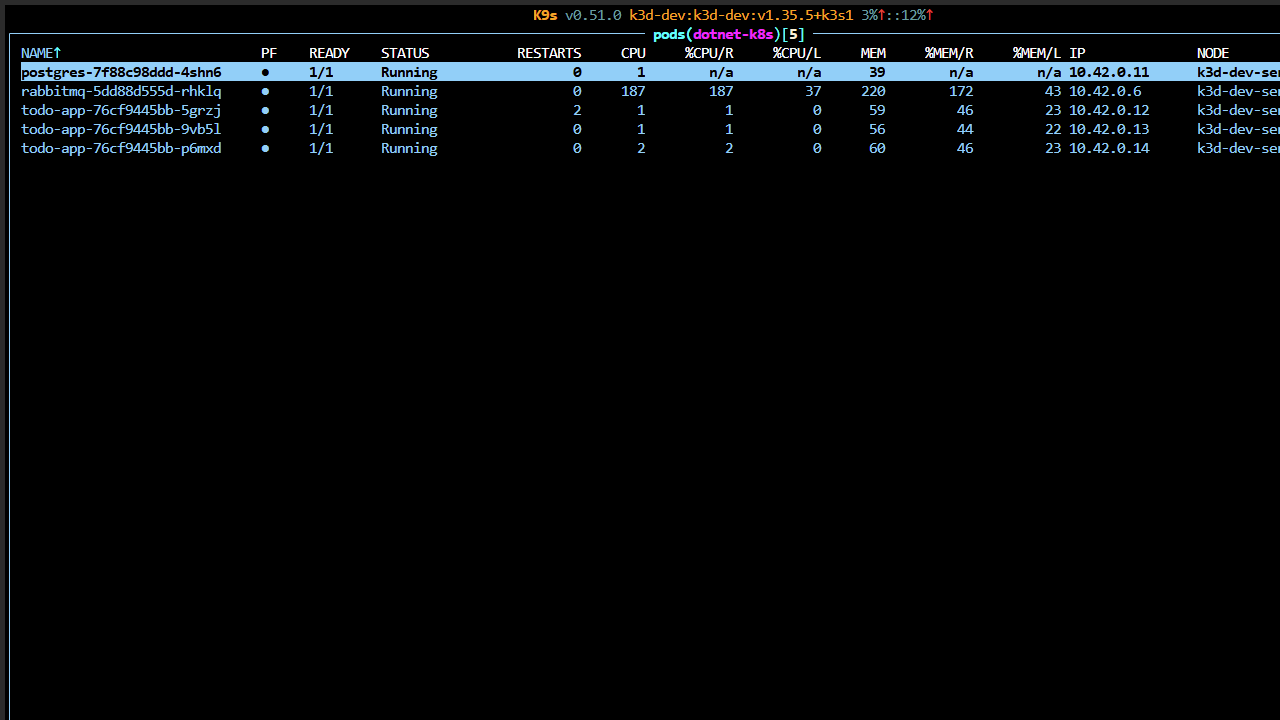
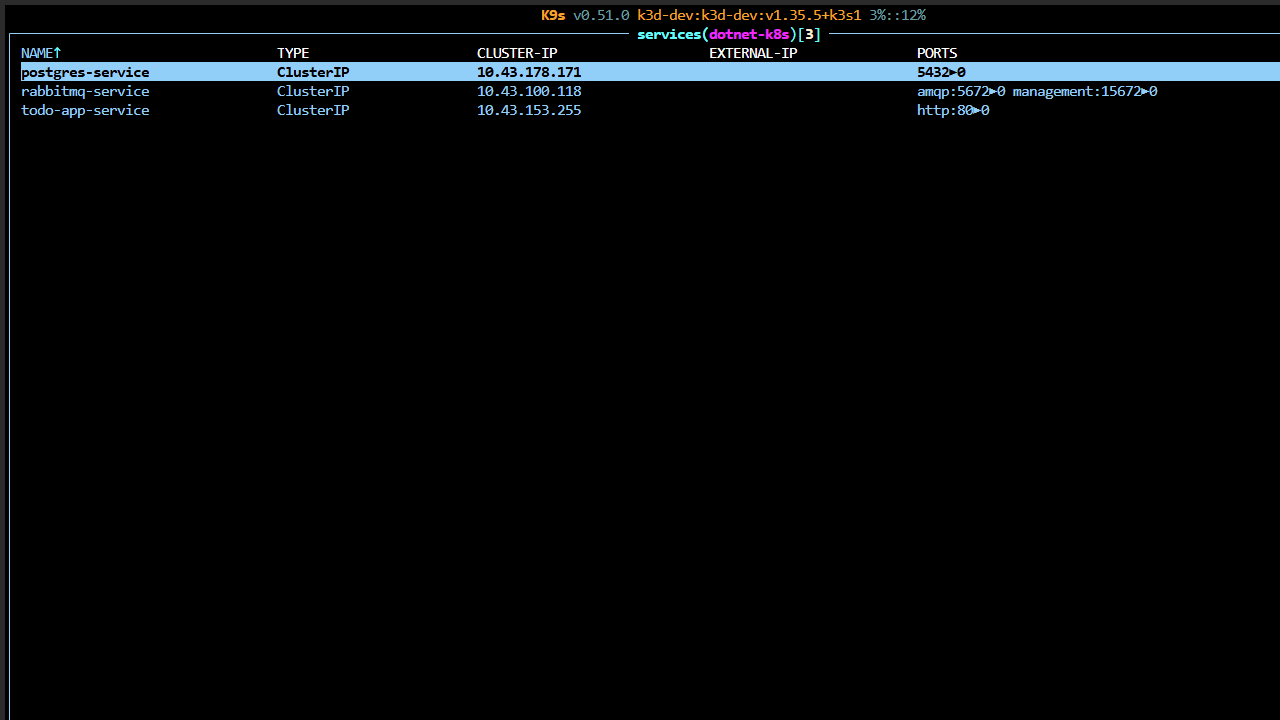
The screenshot above shows the live pod list from the dotnet-k8s namespace. Switch to Services (: then svc) to inspect the ClusterIP service and any LoadBalancer IPs MetalLB has assigned.
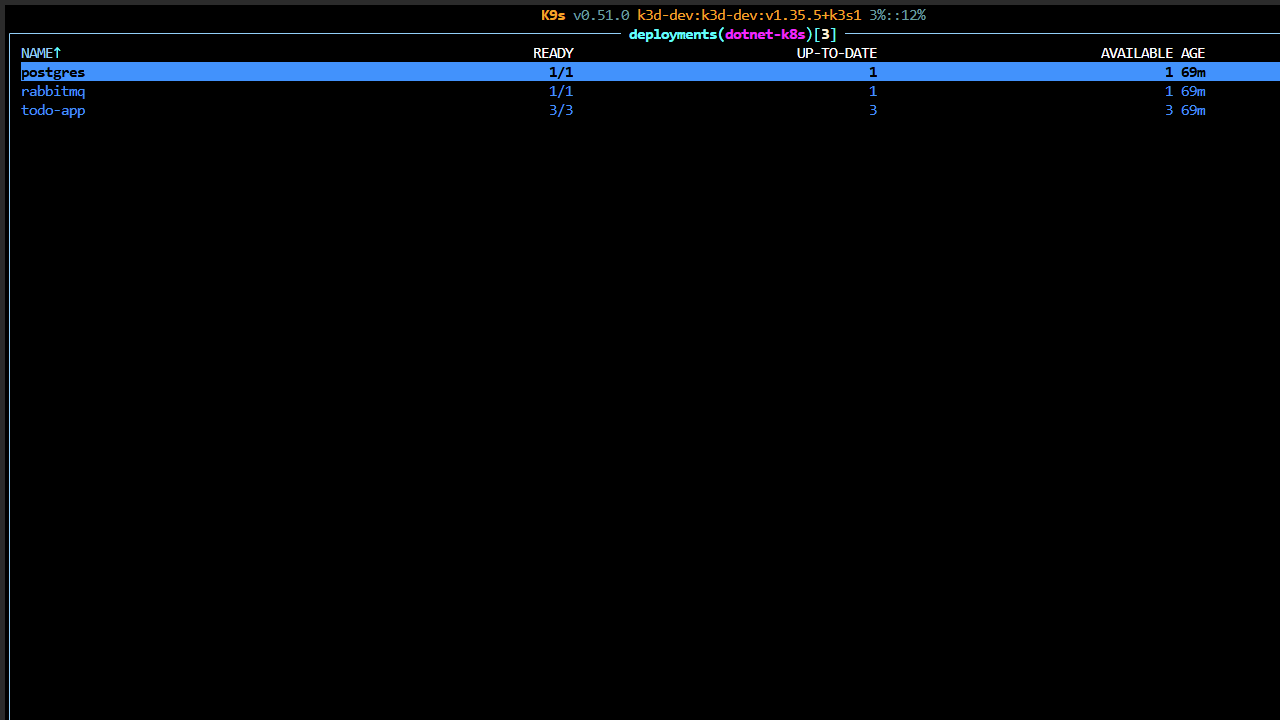
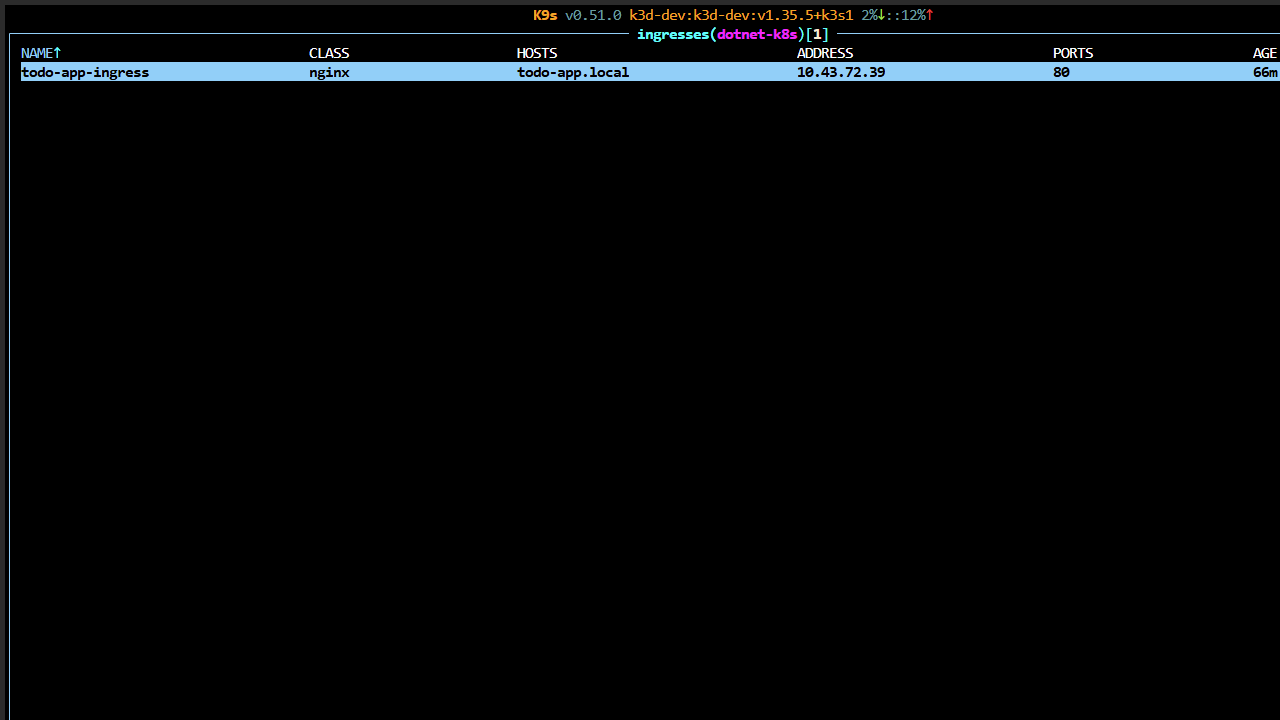
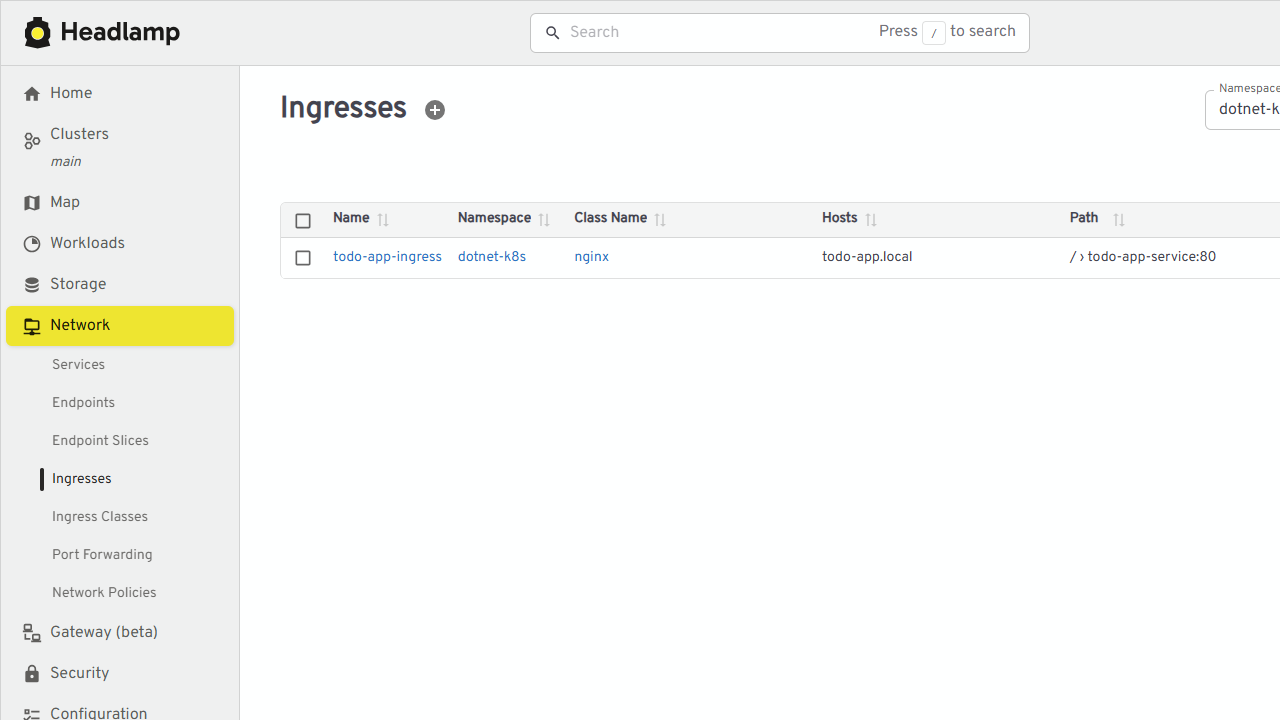
For a broader view, switch to Deployments (: then dp) and Ingresses (: then ingress). These views confirm the app rollout, replica status, and the host/path rules routing traffic into the cluster.
See the k9s documentation for the full command and key-binding reference.
Useful k9s commands for this sample
k9s -n dotnet-k8s                    # app namespace
k9s -n ingress-nginx                 # nginx controller
k9s -n envoy-gateway-system          # Envoy Gateway data plane
k9s -n metallb-system                # MetalLB speaker/controller

# inside k9s:
#   :pods        → list pods
#   :svc         → list services
#   :ingress     → list Ingress resources
#   :gateway     → list Gateway resources
#   :httproute   → list HTTPRoutes
#   :ipaddresspool → list MetalLB pools
Headlamp: a modern web UI for Kubernetes
Headlamp is a Kubernetes UI originally built by Kinvolk and now a CNCF sandbox project. It runs as a desktop application that reads your local ~/.kube/config, or as an in-cluster deployment. Unlike the legacy Kubernetes Dashboard, Headlamp supports modern resources such as Gateway API, has a clean plugin architecture, and needs no manual token setup in desktop mode.
Install Headlamp
The installer script chooses the best package format for your OS:
# macOS / Linux / Windows
./scripts/install-k8s-tools.sh --headlamp
Or install manually:
# macOS
brew install --cask headlamp

# Linux
flatpak install flathub io.kinvolk.Headlamp
# or
sudo snap install headlamp

# Windows (winget is preferred)
winget install Headlamp -e --source winget
# or
choco install headlamp
# or
scoop install headlamp
Main features
| Feature | Why it matters for this sample |
|---|---|
| Cluster overview | See nodes, namespaces, events, and top pods at a glance |
| Resource detail pages | Click a Pod → see logs, describe YAML, exec shell, and port-forward from the browser |
| Gateway API support | GatewayClass, Gateway, and HTTPRoute appear in the sidebar once CRDs are installed |
| Multi-cluster | Switch between k3d, Minikube, and cloud contexts without leaving the UI |
| Plugins | Extend with custom views (e.g., cost, security scanners) |
| In-cluster mode | Deploy Headlamp as a pod and share a team dashboard |
Headlamp in action
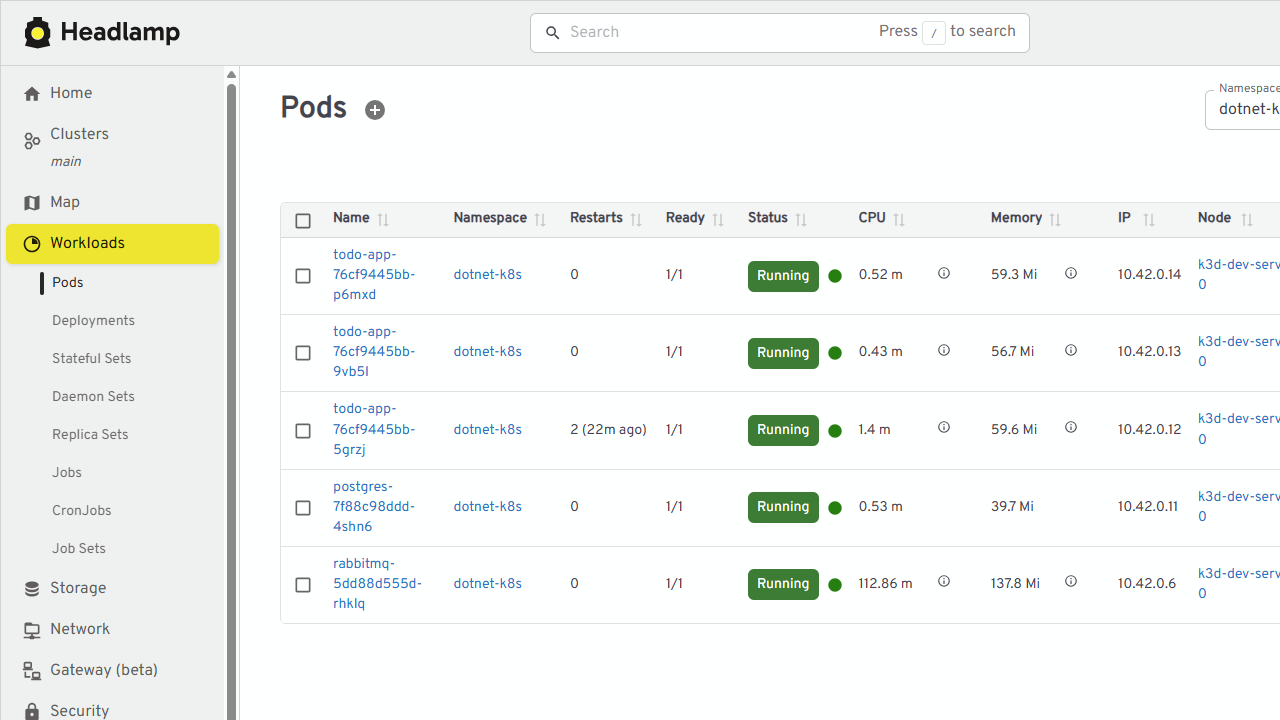
Launch Headlamp from your applications menu, select the k3d-dev context, and open the dotnet-k8s namespace. The Pods view shows the todo-app, postgres, and rabbitmq pods with CPU and memory columns. Click any pod to stream logs or open an interactive shell directly in the browser.
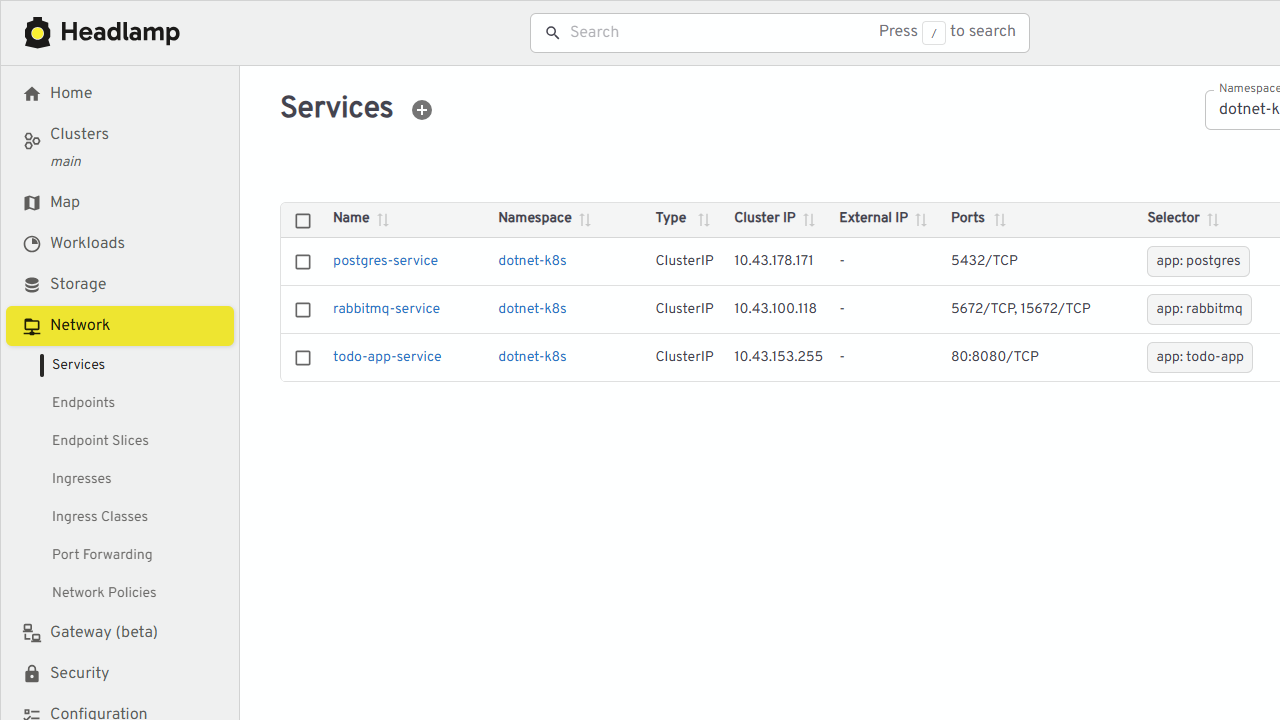
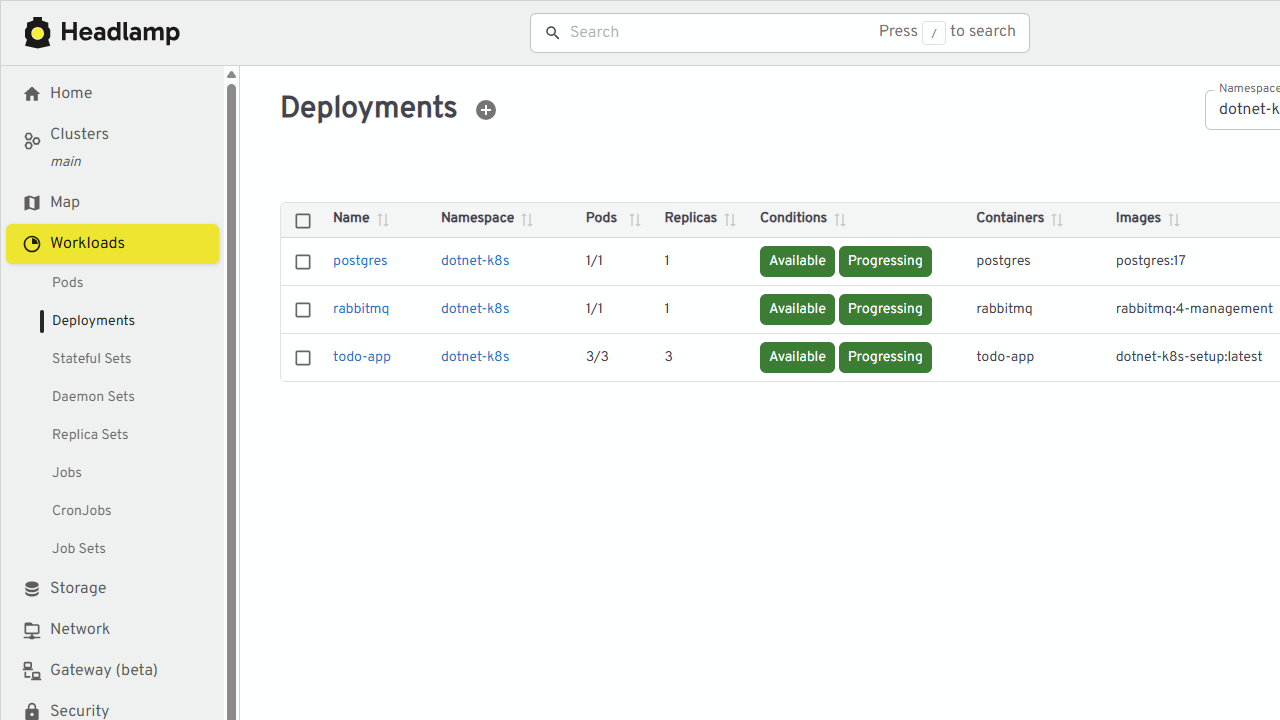
The Services and Deployments views give the same high-level readout as kubectl get svc and kubectl get deploy, but with inline status, labels, and quick links to related pods.
Headlamp also renders Gateway API resources automatically. After applying k8s/gateway-api.yaml, open Network → Gateways (or the Gateway API section in the sidebar) to see the GatewayClass, Gateway, and HTTPRoute and their conditions (Accepted, Programmed, ResolvedRefs).
See the Headlamp in-cluster installation docs and the Headlamp desktop docs for platform-specific install steps.
Deploy Headlamp inside the cluster
For a shared team UI, deploy Headlamp in-cluster and access it via port-forward:
./scripts/install-k8s-tools.sh --cluster

# Forward the UI to localhost
kubectl -n kube-system port-forward svc/headlamp 4466:80
# open http://localhost:4466
In-cluster Headlamp needs a ServiceAccount with appropriate RBAC. The default manifest creates one, but for production restrict it to read-only roles or integrate your identity provider. See the Headlamp in-cluster docs for details.
k9s vs Headlamp: which one to use?
| Need | k9s | Headlamp |
|---|---|---|
| Terminal-only workflow | ✅ Best choice | ❌ Desktop or browser |
| Fast keyboard navigation | ✅ Yes | Partial |
| Beginner-friendly GUI | Basic | ✅ Best choice |
| Gateway API resources | ✅ Yes | ✅ Yes, with richer detail |
| Multi-cluster context switch | Manual kubeconfig | ✅ Point and click |
| Port-forward from UI | ✅ Yes | ✅ Yes |
| Team/shared dashboard | ❌ Local only | ✅ In-cluster mode |
| Low resource overhead | ✅ Tiny binary | Larger desktop app |
My recommendation: keep k9s open in a terminal for day-to-day fast checks, and use Headlamp when you need to show the cluster to someone else, debug a pod through a visual UI, or browse Gateway API conditions. The installer script sets up both so you can switch between them without friction.
Egress and Network Policies
Ingress controls what enters your pods; egress controls what leaves them. By default a pod can dial anything: every other pod, the API server, the internet. That is convenient in a demo and dangerous in production. A NetworkPolicy with policyTypes: [Egress] flips the default to deny and enumerates what the app may reach:
Source: k8s/egress-policy.yaml
# k8s/egress-policy.yaml — allow the app to reach only Postgres + DNS + one external API
apiVersion: networking.k8s.io/v1
kind: NetworkPolicy
metadata:
  name: todo-app-egress
  namespace: dotnet-k8s
spec:
  podSelector:
    matchLabels:
      app: todo-app
  policyTypes:
    - Egress
  egress:
    - to:
        - podSelector:
            matchLabels:
              app: postgres
      ports:
        - protocol: TCP
          port: 5432
    - to:
        - namespaceSelector: {}
      ports:
        - protocol: UDP
          port: 53
        - protocol: TCP
          port: 53
Focus here:
- the policy is intentionally small and specific: only Postgres and cluster DNS stay reachable.
The sample repo ships this as k8s/egress-policy.yaml. One caveat: enforcement depends on the CNI. Calico and Cilium enforce NetworkPolicy; k3s' default flannel does not, so on the k3d cluster the file applies cleanly but is inert until a policy CNI runs. If you evaluate this sample on k3d, install Calico (kubectl apply -f https://raw.githubusercontent.com/projectcalico/calico/v3.28.0/manifests/calico.yaml) to see it take effect.
Load Balancer Layers: L4 vs L7
The word "load balancer" is overloaded in Kubernetes, and the two meanings sit at different layers of the OSI model:
| Layer | OSI level | Works on | Kubernetes example |
|---|---|---|---|
| L4 | Transport | TCP/UDP connections, IP:port | Service type LoadBalancer/NodePort, MetalLB, svclb |
| L7 | Application | HTTP requests, hosts, paths | Ingress, Gateway API, nginx/Envoy controllers |
The layer determines what the balancer can decide. An L4 device sees IPs and ports and forwards bytes; an L7 device parses HTTP and can route on host, path, header, or cookie. That is also why only L7 can terminate TLS, integrate a WAF, or cache responses.
Products at each layer
| Layer | Hardware / appliance | Software | Cloud managed |
|---|---|---|---|
| L4 | F5 BIG-IP LTM, Citrix ADC, KEMP, Cisco, hardware LBs | HAProxy (TCP mode), nginx (stream mode), kube-proxy, MetalLB | AWS NLB, Azure Load Balancer, GCP TCP/UDP LB |
| L7 | F5 BIG-IP (HTTP profile), Citrix ADC | nginx, HAProxy (HTTP mode), Envoy, Traefik, Kong, Caddy | AWS ALB, Azure Application Gateway, GCP HTTP(S) LB, CloudFront, Cloudflare |
The most common appliance in datacenter conversations is F5 BIG-IP: an appliance (hardware or virtual) that does both L4 and L7: LTM for L4/L7 server load balancing, plus WAF, TLS offload, and failover. It is the classic on-prem front door. HAProxy and nginx are the software equivalent: they run on a VM as a standalone reverse proxy, or inside the cluster as the Ingress controller. In this sample nginx plays the L7 role inside the cluster.
On-prem only, or replaced in the cloud?
The rule is simple: the appliance layer is an on-premises thing; the cloud replaces it with managed load balancers.
- On-premises: you bring your own balancing. That is the F5 BIG-IP or HAProxy sitting in front of your nodes, and it is exactly why the NodePort option exists: your existing appliance forwards to
<node-ip>:30080because it cannot provision a KubernetesLoadBalancerService. You own the hardware, the failover, and the licensing. - Cloud: the provider's control plane provisions the balancer for you.
type: LoadBalancerbecomes a managed NLB or Azure LB (L4), andIngress/Gateway API attach to ALB or Application Gateway (L7). Your F5 is gone, replaced by the provider's product, billed per hour, scaled automatically. You do not write a manifest for the cloud LB itself, only for the Service type that triggers it.
Software balancers (nginx, HAProxy, Envoy) are the bridge between the two: on-prem you may run them as VMs or in-cluster (as this sample does), and in the cloud you usually run the same nginx/Envoy inside the cluster behind the managed LB.
Physical hardware, on-prem software, or cloud: when to pick which
Physical appliances and cloud LBs are not interchangeable; the choice follows your environment and operations team, not preference. Use this as a decision guide:
| Factor | Physical hardware (F5 BIG-IP, Citrix ADC) | On-prem software (HAProxy/nginx VMs, MetalLB, in-cluster controllers) | Cloud managed (NLB, ALB, Azure LB / App Gateway) |
|---|---|---|---|
| Where it runs | Datacenter rack or virtual appliance | Your own VMs, bare metal, or inside the cluster | Provider's control plane (EKS, AKS, GKE) |
| Why pick it | Existing investment, 100 Gbps throughput, dedicated WAF/TLS hardware, compliance mandates | No licensing, full control, cheap at scale, runs anywhere | Zero operations, auto-scaling, per-hour billing, native cloud DNS and certs |
| When | You already own F5/Citrix; compliance or a legacy estate requires an appliance | Homelab or on-prem with a software-first team; bare metal needs MetalLB | You run managed Kubernetes and want the provider to own the network edge |
Layer by layer, the same decision applies:
| Layer | Physical hardware | On-prem software | Cloud managed |
|---|---|---|---|
| L4 | F5 BIG-IP LTM/GTM in front of the datacenter for raw TCP/UDP at massive scale | MetalLB inside the cluster (bare metal) or HAProxy (TCP mode) on a VM | AWS NLB, Azure Load Balancer, GCP TCP/UDP LB for TCP passthrough |
| L7 | F5 BIG-IP with an HTTP profile and WAF as the datacenter front door | nginx / Envoy / HAProxy (HTTP mode) as the Ingress controller inside the cluster | AWS ALB, Azure Application Gateway, GCP HTTP(S) LB when you do not want to run a controller |
So when should you use a physical load balancer? When an appliance already exists, when a single box must push 100 Gbps with hardware TLS/WAF offload, or when compliance requires a dedicated network device. Use on-prem software when you control the hardware and want no licensing overhead (MetalLB for bare-metal IPs, an in-cluster nginx/Envoy for L7). Use the cloud LB when you are on a managed cluster and the provider can provision and scale the edge for you. In this sample you exercise the on-prem software row at both layers: MetalLB is the L4 piece, nginx (or Envoy Gateway) is the L7 piece. The same manifests run unchanged on a cloud cluster, where the cloud managed row silently takes over the L4 hop.
How the layers fit this sample
Both layers are present in one request. On k3d: the k3d load balancer container terminates TCP at L4 and forwards to the node, the nginx controller inspects the HTTP host at L7 and picks the Service, and kube-proxy balances at L4 across pods. On bare metal, MetalLB replaces the k3d LB at L4 with a LAN IP, and nothing above changes. The Kubernetes Gateway API path swaps the L7 controller (Envoy Gateway instead of nginx) but keeps the same L4 entry point. Choose L4 when you need raw TCP/UDP passthrough (a database, Redis, gRPC without inspection); choose L7 when you need host/path/header routing, which is the case for the todo API.
Production Ingress: Exposing the Cluster
Everything so far runs on a single laptop node. Production asks one question the demo can skip: how does external traffic reach the cluster? Kubernetes does not answer it; the cloud or the hardware does. This section walks through the options: first the inside-out view of where the pieces actually live, then the four standard exposure options, and finally the edge layer that sits in front of the whole cluster in production.
How Ingress works: inside vs outside the cluster
A common point of confusion is what is actually inside Kubernetes and what is outside it. The Ingress object and the nginx controller are both inside the cluster; the load balancer that delivers traffic to them lives outside, on the host or in the cloud:
| Question | Answer |
|---|---|
Is the Ingress object inside the cluster? | Yes, it is a Kubernetes resource, stored in etcd like everything else |
| Is the nginx controller inside the cluster? | Yes, it runs as a pod inside the cluster |
Is the app Service (ClusterIP) reachable from outside? | No, and that is intentional. Only the controller is exposed; it forwards to the internal Service |
| What is outside the cluster then? | The entry point: k3d's load balancer container, minikube tunnel, a cloud LB, or MetalLB on bare metal |
What happens with type: LoadBalancer on bare metal? | The Service stays EXTERNAL-IP: <pending> forever. There is no cloud API to provision one. That is the gap MetalLB fills |
The traffic path diagram in the architecture section is the inside view: host → k3d load balancer → controller pod (hostNetwork) → ClusterIP Service → pods. Everything after the first hop happens inside the cluster.
Option 1: Cloud Provider LoadBalancer (managed clusters)
Use when: AWS EKS, Azure AKS, Google GKE, DigitalOcean.
The cloud control plane watches for type: LoadBalancer Services and provisions a real load balancer (AWS NLB/ALB, Azure LB, GCP LB) with a public IP or DNS name:
Internet
   │
   ▼
Cloud Load Balancer  (public IP — provisioned by the cloud)
   │  TCP passthrough on 80/443
   ▼
ingress-nginx-controller Service  (type: LoadBalancer)
   │
   ▼
ingress-nginx-controller Pod  (reads the Ingress rules)
   │
   ▼
todo-app-service  (ClusterIP — internal)
   │
   ▼
todo-app pods
Nothing changes in the sample manifests. Set the controller Service to LoadBalancer and the cloud does the rest. Production additions on top:
- Attach TLS with cert-manager + Let's Encrypt (covered below).
- On AWS, annotate the controller Service to use an NLB (
service.beta.kubernetes.io/aws-load-balancer-type: "nlb"). - On Azure, consider AGIC (edge layer Option B below) to skip nginx entirely.
Option 2: NodePort (bare metal with an existing LB)
Use when: bare metal, on-prem, or any cluster where you already have a load balancer or reverse proxy (HAProxy, F5, a hardware LB) in front of your nodes.
NodePort opens a port from the default range 30000-32767 on every node's IP. Your existing LB or DNS round-robin forwards to those node IPs:
Internet
   │
   ▼
Your LB / HAProxy / hardware LB
   │  forwards to <any-node-IP>:30080 and <any-node-IP>:30443
   ▼
Kubernetes node (any node)
   │  NodePort routes internally
   ▼
ingress-nginx-controller Pod
   │
   ▼
todo-app-service (ClusterIP) → todo-app pods
Change the controller Service to NodePort. The sample ships the patch as a file, ready for kubectl patch:
# k8s/ingress-nginx-nodeport-patch.yaml
# F5 BIG-IP / HAProxy / hardware LB in front of your nodes forwards
# to <any-node-ip>:30080 / :30443 — a strategic-merge patch.
apiVersion: v1
kind: Service
metadata:
  name: ingress-nginx-controller
  namespace: ingress-nginx
spec:
  type: NodePort
  ports:
    - name: http
      port: 80
      targetPort: http
      nodePort: 30080
    - name: https
      port: 443
      targetPort: https
      nodePort: 30443
kubectl patch svc ingress-nginx-controller -n ingress-nginx \
--patch-file k8s/ingress-nginx-nodeport-patch.yaml
# verify — you now see 80:30080/TCP,443:30443/TCP
kubectl get svc ingress-nginx-controller -n ingress-nginxStep instructions, k3d-first:
On k3d: test the NodePort path with no extra tooling: k3d maps the kube-api port, but node ports need explicit mapping to reach them from the host. Create the cluster with
--port '30080:30080@server:0', or map after the fact:kubectl patch svc ingress-nginx-controller -n ingress-nginx \ --patch-file k8s/ingress-nginx-nodeport-patch.yaml curl http://localhost:30080/todos/ # reaches the cluster via node port 30080Because k3d runs in Docker, the k3d load balancer container sits in front of the node anyway; the NodePort is what you would point a real on-prem LB at.
On bare metal:
kubectl get nodes -o wideto get node IPs, then point your F5 BIG-IP (or HAProxy) virtual server at<any-node-ip>:30080/:30443. No DNS changes needed for IP-based forwarding.
The drawback is the port: 30080 is not port 80, so something in front must translate. That translation problem is exactly what MetalLB removes. The NodePort option exists mainly because your existing on-prem appliance (an F5 BIG-IP, a hardware LB) cannot provision a Kubernetes LoadBalancer Service.
Option 3: MetalLB (recommended for bare metal)
Use when: bare metal, on-prem, or homelab, anywhere you want real LoadBalancer behaviour without cloud hardware.
Covered in full in the on-premises section: MetalLB runs inside the cluster, allocates IPs from a pool, and announces them with Layer 2 ARP or BGP. The controller Service keeps type: LoadBalancer and MetalLB fulfils the contract, so the manifests stay identical between cloud and bare metal. It is the natural successor to the NodePort approach above.
Option 4: HostNetwork / HostPort (DaemonSet mode)
Use when: edge nodes, single-node clusters, or when you want the controller bound directly to the node's network interface at 80/443 with no intermediate Service.
The controller pod joins the host network namespace and listens on the node's own NIC:
Internet
   │  port 80/443 on the physical node IP
   ▼
Node network interface  (hostNetwork: true)
   │  received directly by the controller pod
   ▼
ingress-nginx-controller Pod  (DaemonSet — one per node)
   │
   ▼
todo-app-service (ClusterIP) → todo-app pods
This is what the k3d sample uses: the controller runs with hostNetwork: true, the k3d load balancer forwards host port 80 to the node, and the pod answers directly. The trade-off is exclusive use of ports 80/443 on that node. Nothing else can bind them, which is exactly the svclb conflict you saw in the Kubernetes Gateway API section.
Decision guide: which option to choose?
The full decision tree lives in the on-premises section. In short: managed cloud → Option 1; bare metal with an existing LB → Option 2; bare metal without one → Option 3 (MetalLB, recommended); edge or single node → Option 4. All four keep the application manifests unchanged.
TLS termination (all environments)
Whatever you pick, add TLS at the controller boundary in production. The standard recipe is cert-manager plus a ClusterIssuer for Let's Encrypt, and an annotation on the Ingress (or the Kubernetes Gateway API listener tls block) that auto-provisions certificates; the app Service stays plain HTTP internally.
Should you expose the Ingress Controller directly to the internet?
Short answer: no, not in production. Exposing the controller via a public LoadBalancer works for simple setups, but raw internet traffic then hits your cluster boundary first. Nothing absorbs a DDoS, blocks malicious requests, or caches static content before the cluster pays for it.
Why the Ingress Controller alone is not enough
| Concern | nginx Ingress Controller | Dedicated edge layer |
|---|---|---|
| WAF / OWASP rules | Basic (modsecurity plugin, manual config) | Built-in, managed, auto-updated |
| DDoS protection | None; cluster absorbs all traffic | Absorbed at the edge, before the cluster |
| TLS certificate management | cert-manager (you manage it) | Managed by the cloud provider |
| Global CDN / caching | None | Static assets cached globally |
| Geo-routing / failover | Single region | Routes to the nearest healthy region |
| Rate limiting | Annotation-based, per Ingress | Global, policy-driven |
| Bot protection | None | Managed bot rules |
| IP allowlisting | Manual annotation | Centralised policy |
The production shape is two layers: the edge owns the public IP and the security, and the controller becomes an internal component reachable only from the edge:
%%{init: {
  'theme': 'base',
  'themeVariables': {
    'background': '#ffffff',
    'primaryColor': '#ffffff',
    'primaryTextColor': '#2c3e50',
    'primaryBorderColor': '#bdc3c7',
    'lineColor': '#34495e',
    'secondaryColor': '#f8f9fa',
    'tertiaryColor': '#f1f3f5',
    'fontFamily': 'Segoe UI, Arial, sans-serif',
    'fontSize': '14px',
    'edgeLabelBackground': '#ffffff',
    'nodeBorder': '2px',
    'mainBkg': '#ffffff',
    'nodePadding': '12px',
    'subGraphBkg': '#fafbfc',
    'subGraphBorder': '#dfe6e9'
  }
}}%%
flowchart TB
    classDef external fill:#f5f5f5,stroke:#616161,color:#424242
    classDef network fill:#fff3e0,stroke:#e65100,color:#bf360c
    classDef gateway fill:#e8eaf6,stroke:#3949ab,color:#1a237e
    classDef compute fill:#e3f2fd,stroke:#1565c0,color:#0d47a1

    subgraph Edge["Edge layer — managed, outside the cluster"]
        direction TB
        PubIP["Public IP / Anycast DNS"]
        TLS["TLS termination"]
        WAF["WAF — OWASP CRS, custom rules"]
        DDoS["DDoS protection"]
        CDN["CDN / response caching"]
        PubIP --> TLS --> WAF --> DDoS --> CDN
    end

    subgraph Cluster["Kubernetes cluster — private network"]
        direction TB
        CtrlSvc["ingress-nginx-controller Service<br/>LoadBalancer — private IP only"]
        CtrlPod["ingress-nginx-controller Pod"]
        AppSvc["todo-app-service<br/>ClusterIP"]
        Pods["todo-app pods ×3"]
        CtrlSvc --> CtrlPod --> AppSvc --> Pods
    end

    Internet["Internet"]
    Internet -->|"HTTPS"| PubIP
    CDN -->|"HTTPS via private peering / VNet"| CtrlSvc

    class Internet external
    class PubIP,TLS,WAF,DDoS,CDN network
    class CtrlSvc gateway
    class CtrlPod compute
    class AppSvc gateway
    class Pods compute
Edge layer options by cloud and approach
Option A: Cloud CDN + WAF in front of nginx (most common)
The nginx controller stays internal and keeps doing Kubernetes routing (path, header, canary); the cloud's managed edge owns security and performance:
| Cloud | Edge product | Notes |
|---|---|---|
| Azure | Azure Front Door + WAF Policy | Global CDN + WAF + DDoS; routes to an internal AKS LB |
| Azure | Application Gateway WAF v2 | Regional L7 LB + WAF; AGIC can replace nginx entirely |
| AWS | CloudFront + AWS WAF + Shield | CDN + WAF + DDoS; routes to an internal NLB |
| AWS | AWS ALB via the Load Balancer Controller | Can replace nginx entirely for AWS-native routing |
| GCP | Cloud Armor + Cloud Load Balancing | WAF + DDoS + global LB; routes to an internal GKE LB |
| Any cloud | Cloudflare in DNS-proxy mode | CDN + WAF + DDoS + bot protection; cloud-agnostic |
Option B: Replace nginx with a cloud-native ingress controller
Some clouds offer a controller that is itself the managed LB plus WAF, running outside the cluster:
| Controller | Cloud | What it is |
|---|---|---|
| AGIC (Application Gateway Ingress Controller) | Azure | Azure Application Gateway WAF v2 is the LB; an AGIC pod inside the cluster watches Ingress resources and configures the gateway. No nginx inside the cluster |
| AWS Load Balancer Controller | AWS | Creates AWS ALB/NLB directly from Ingress/Service resources; WAF attaches to the ALB |
| GKE Gateway API | GCP | Provisions Google Cloud Load Balancer with Cloud Armor from Gateway API resources |
The AGIC pattern is instructive because the data path bypasses kube-proxy entirely:
Internet
   │
   ▼
Azure Application Gateway WAF v2  (outside the cluster — Azure-managed)
   │  WAF rules, TLS, health checks
   ▼
AKS pod IPs  (directly — no ClusterIP / kube-proxy hop)
Option C: Cloudflare (cloud-agnostic, any cluster)
Cloudflare's proxy works in front of any cluster regardless of provider, and is the popular choice for self-hosted and bare-metal clusters. The most secure variant is Cloudflare Tunnel: a cloudflared pod makes an outbound connection to Cloudflare's edge, so the cluster needs no inbound public port at all. That is valuable for home labs and NAT'd bare metal.
Summary: direct vs layered exposure
| Approach | Public IP on the controller? | WAF | DDoS | CDN | Use case |
|---|---|---|---|---|---|
| Direct (nginx + public LB) | Yes | No | No | No | Dev / staging only |
| nginx (internal) + cloud WAF/CDN | No | Yes | Yes | Yes | Production (cloud) |
| AGIC / AWS ALB Controller | No nginx at all | Yes | Yes | Partial | Production (cloud-native) |
| nginx + Cloudflare proxy | No (Cloudflare masks it) | Yes | Yes | Yes | Production (any cluster) |
| nginx + Cloudflare Tunnel | No public IP at all | Yes | Yes | Yes | Production (bare metal / NAT) |
The rule of thumb: the ingress controller is an internal traffic router and should live on a private IP; the internet-facing endpoint should be a managed edge service. One local alternative: Minikube does the same job as k3d with a real VM and minikube tunnel instead of a containerized load balancer. The sample README has the full step-by-step.
Conclusion
Everything in this article is reproducible from the dotnet-k8s-setup repository. You started with a .NET 10 Minimal API, PostgreSQL, and RabbitMQ, containerized it, and ran it on a local Kubernetes cluster built with k3d, the Rancher-backed distribution that lives inside Docker. The traffic path became explicit: host port, k3d's built-in load balancer, a controller bound to the node with hostNetwork, a ClusterIP service, and finally the pods. That path is expressed once through the classic Ingress API and once through the Kubernetes Gateway API family, both implemented in the sample and validated side by side. You saw config flow in with zero code changes, secrets override files, and MetalLB extend the same manifests to on-prem hardware.
When the same manifests move to on-premises hardware, MetalLB steps in where a cloud provider would normally act. It implements the LoadBalancer contract inside the cluster, announces IPs from a pool you define, and leaves the application untouched. That transparency is the property to look for in infrastructure: the same YAML runs on k3d, on bare metal, and on a managed cloud.
Finally, the routing API choice. Ingress is a single mature resource that is fine for simple setups and remains the pragmatic default for a demo. The Kubernetes Gateway API splits the problem across GatewayClass, Gateway, and HTTPRoute, gives each team its own resource to own, and adds native support for canary traffic, gRPC, cross-namespace routing, and header matching. Both run fine in k3d, the Kubernetes Gateway API via a controller like Envoy Gateway. Pick Ingress when simplicity wins, pick the Kubernetes Gateway API when you know routing complexity is coming, and if you are starting a fresh cluster in 2025 or later, treat the Kubernetes Gateway API as the default direction to move.
This article covered how traffic gets into a single cluster. The next chapter, "Beyond kubectl: Managing .NET Workloads Across Kubernetes Clusters with Rancher", moves from one cluster to many: a management plane that operates every cluster from a single UI, RBAC, and GitOps pipeline. The story continues there with the same k3d-based toolbox.